Purpose-built controls
The form exposes wash intensity, edge definition, palette warmth, and background treatment, so the request can express a specific goal and a practical output context instead of relying on an ambiguous one-line instruction.
Start with a clear authorized photo with a visible subject and balanced lighting, choose wash intensity, edge definition, palette warmth, and background treatment, and keep the request focused on a result you can inspect before use.
Use only material you are authorized to handle. Review source details and the intended use before submitting.
Expected output
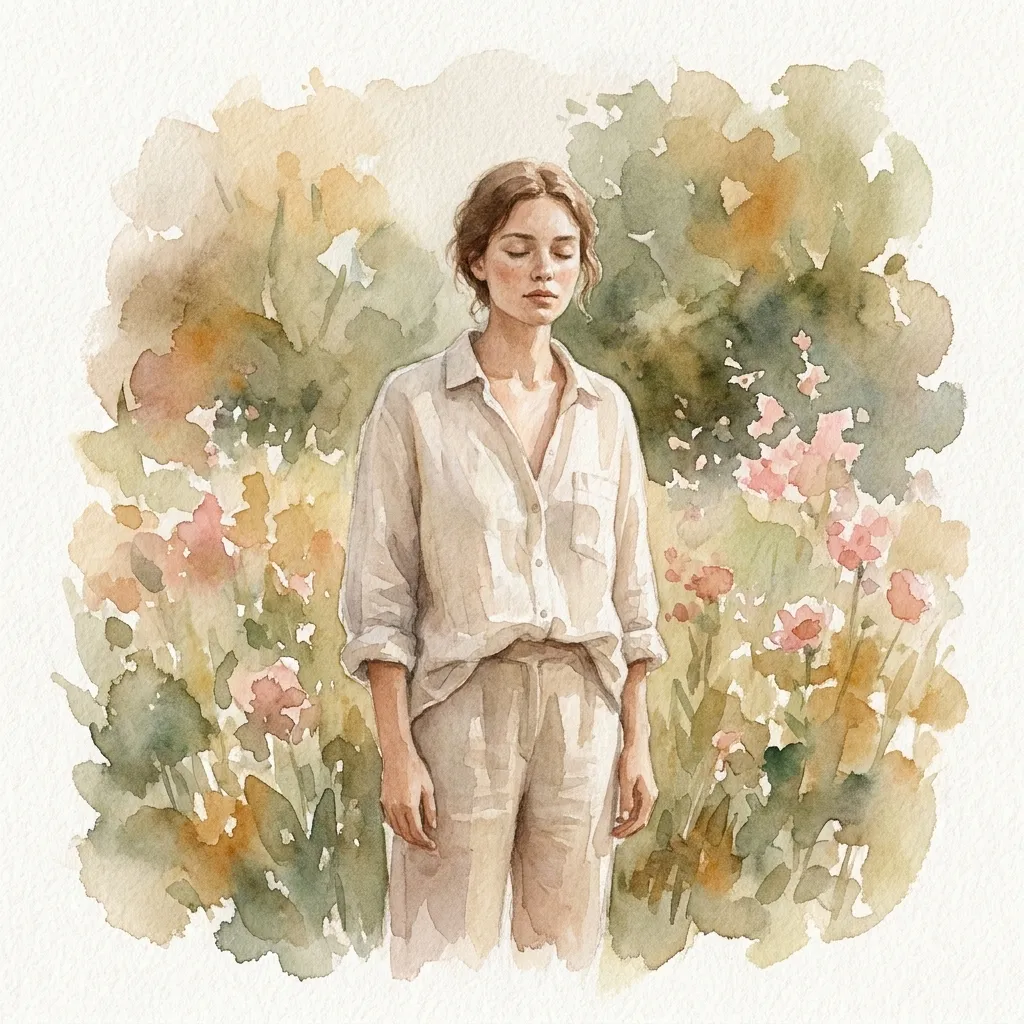
An authorized garden portrait uses translucent washes, visible paper texture, and soft edges to illustrate an original watercolor direction without referencing a specific artist.
Key features
The form exposes wash intensity, edge definition, palette warmth, and background treatment, so the request can express a specific goal and a practical output context instead of relying on an ambiguous one-line instruction.
Begin with a clear authorized photo with a visible subject and balanced lighting. Clear, authorized source material and a focused brief make it easier to state the intended transformation or review target accurately.
Before you use any future result, check subject recognition, unintended text or logo changes, color balance, and source-image rights. A prepared request can organize the work, but it cannot replace context-aware human verification.
Use this tool only within the stated boundary: do not copy a living artist's distinctive style or present an unofficial image as licensed artwork. Keep original sources and permissions available when they are relevant to sharing or commercial use.
Step by step
Provide a clear authorized photo with a visible subject and balanced lighting. Identify the actual use case and keep the request limited to information, media, and people you are authorized to use.
Set wash intensity, edge definition, palette warmth, and background treatment. Select the option that matches the destination rather than assuming a stronger transformation or longer output is automatically better.
Inspect subject recognition, unintended text or logo changes, color balance, and source-image rights. Correct mistakes against the original source and use qualified review where the material affects rights, safety, decisions, or public claims.
FAQ
It helps you prepare an original watercolor-style reinterpretation of an authorized photo. Use the page to make the intended input, controls, and review points explicit before relying on any result.
Use a clear authorized photo with a visible subject and balanced lighting. Better source quality and a specific goal make the request easier to interpret and to review later.
Choose wash intensity, edge definition, palette warmth, and background treatment based on the actual destination and audience. Start with the least aggressive option that can reasonably serve the stated purpose.
Review subject recognition, unintended text or logo changes, color balance, and source-image rights. Compare material details with the source instead of assuming that an apparently polished result is complete or accurate.
Yes. do not copy a living artist's distinctive style or present an unofficial image as licensed artwork. You remain responsible for permissions, source accuracy, disclosures, and the final decision to share or use any output.
Image Converters
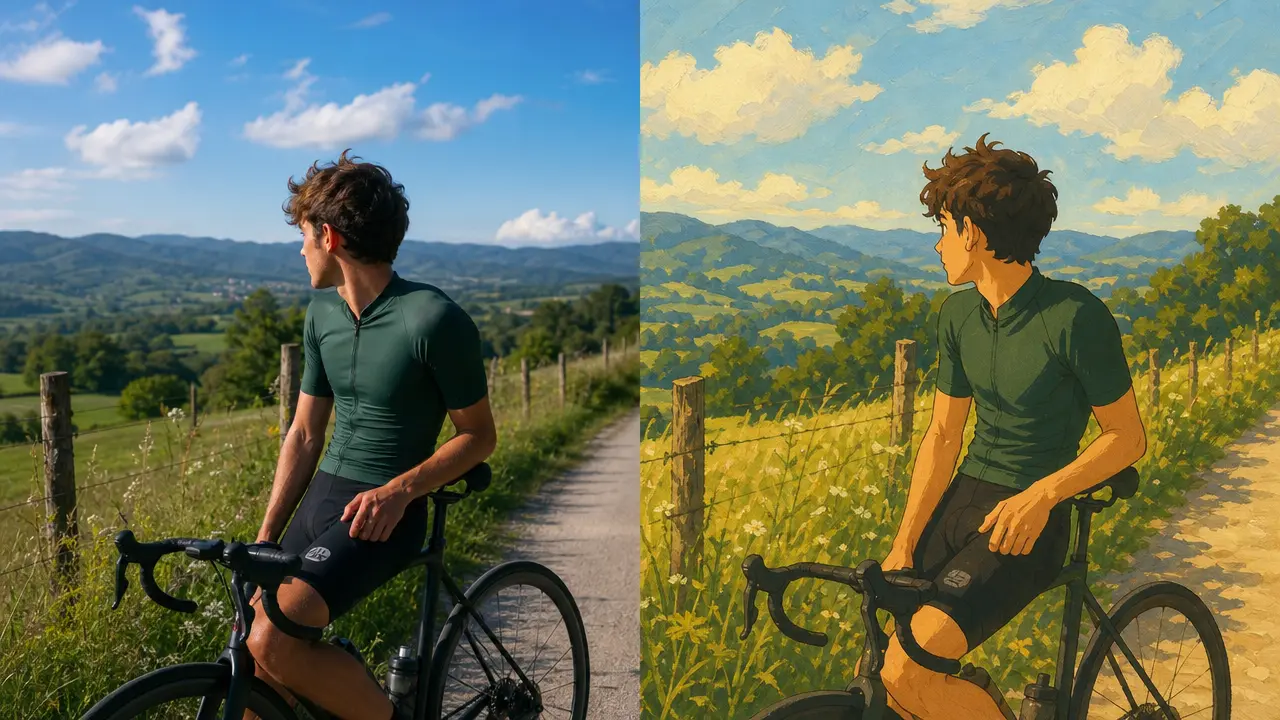
Reimagine a photo with hand-painted, animation-inspired scenery and adjustable stylization.
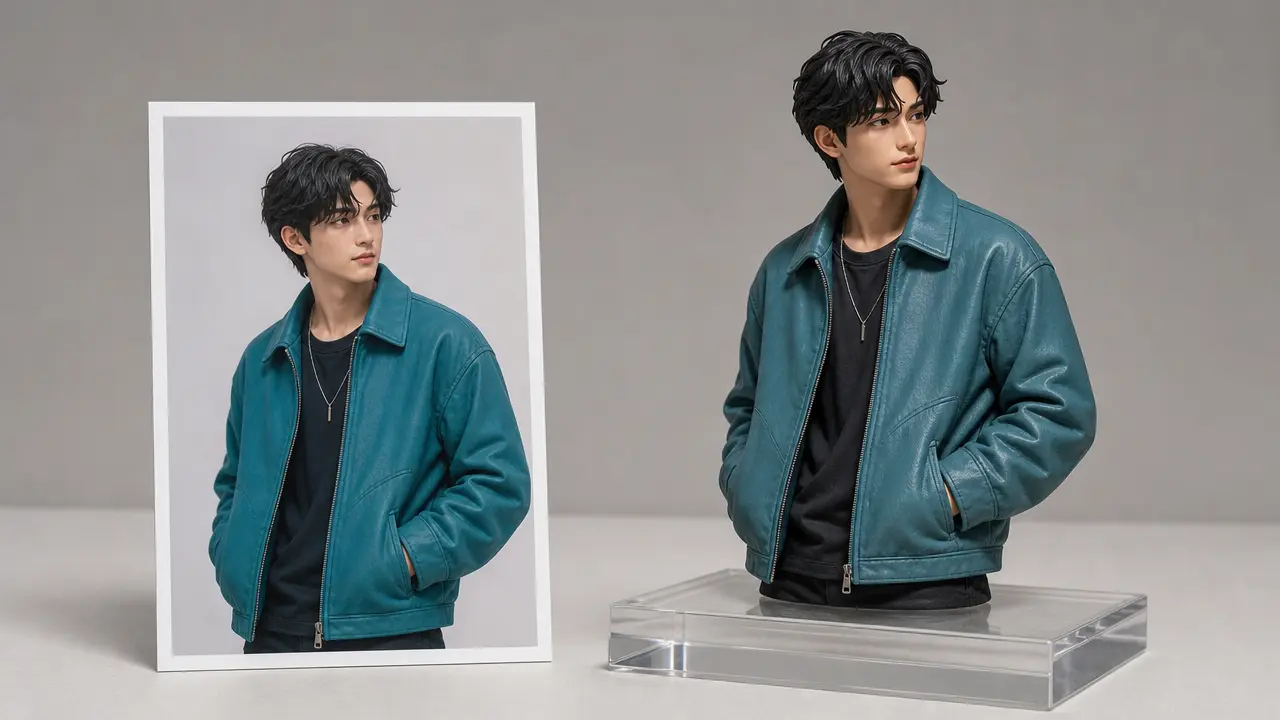
Reimagine an authorized photo as a dimensional product, figurine, or isometric illustration concept while preserving its key subject and composition.
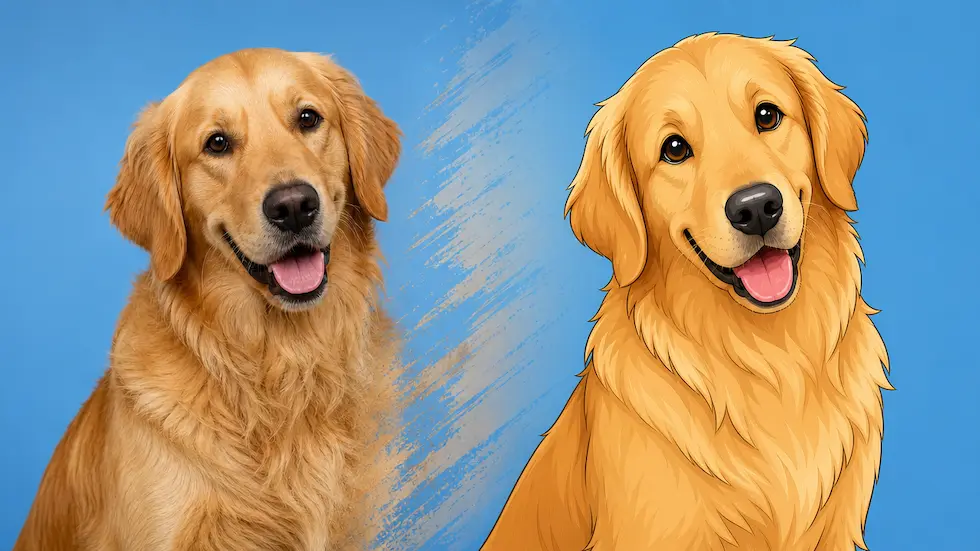
Prepare an authorized photo for a controlled cartoon-style visual reinterpretation with line, color, and background direction.
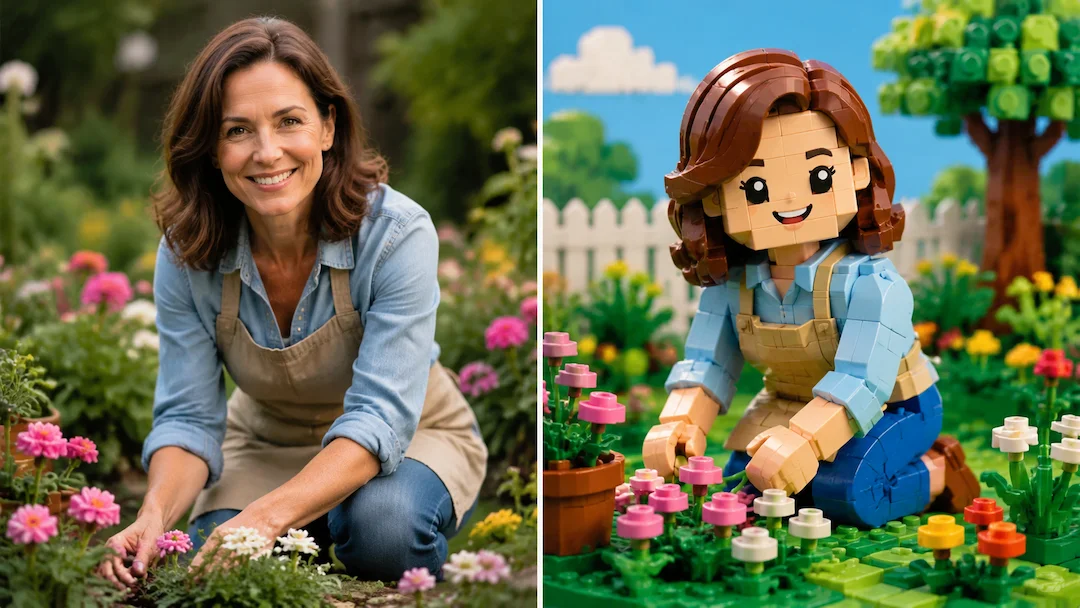
Use Photo to Lego to prepare an original brick-toy-style interpretation of an authorized photo with figure, scene, and detail controls.
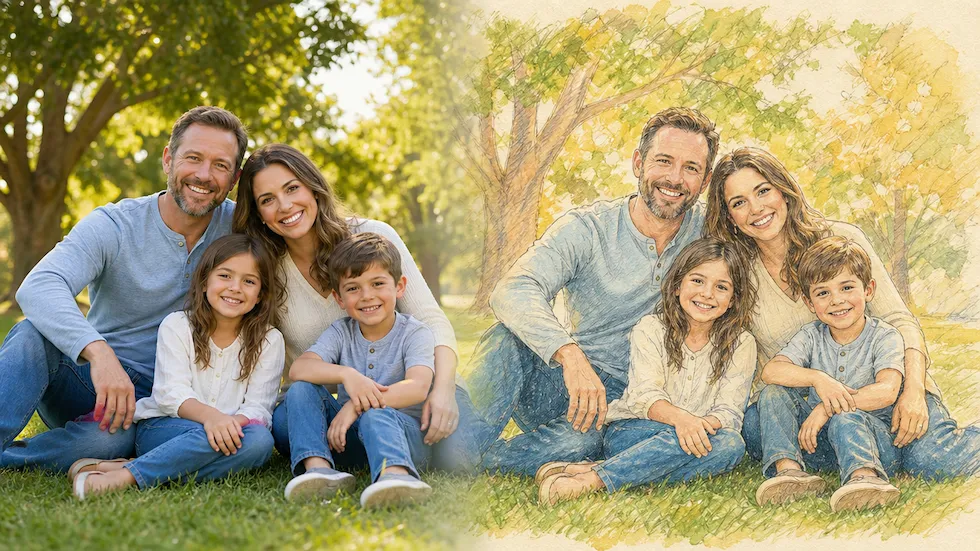
Use Photo to Disney to prepare an original family-friendly illustration interpretation of an authorized photo without claiming Disney affiliation.
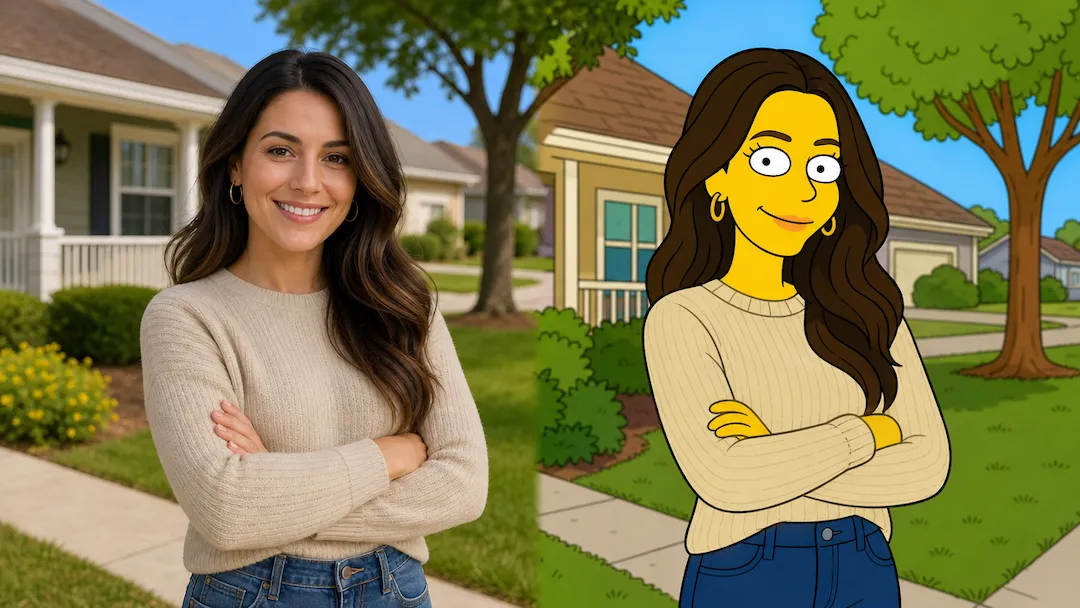
Reimagine an authorized photo as an original animated portrait with clear composition, palette, and expression controls.