Controls matched to the task
The form makes diagram type, flow direction, detail depth, audience, and label style explicit, so the request captures the intended result and delivery context instead of relying on an ambiguous one-line instruction.
Start with an original process description or authorized notes that state the start, decisions, steps, exceptions, and intended outcome. Choose diagram type, flow direction, detail depth, audience, and label style, then review the result against the original context before using it.
Use only material you are authorized to handle. Review source details and intended use before submitting.
Expected output
Input
Start when a customer report contains a reproducible production issue. Support verifies the report. If the issue affects more than one account, route it to the incident owner; otherwise create a standard bug ticket. End after the customer receives a confirmed next step.
Output
Flow direction: show verification as the first action, one decision branch for multi-account impact, distinct owner handoff, and an end node after the confirmed customer update.
A customer-support escalation example shows how a trigger, one decision, owner handoff, exception, and end state create a reviewable flowchart structure.
Key features
The form makes diagram type, flow direction, detail depth, audience, and label style explicit, so the request captures the intended result and delivery context instead of relying on an ambiguous one-line instruction.
Begin with an original process description or authorized notes that state the start, decisions, steps, exceptions, and intended outcome. Clear, authorized source material gives the request a stronger factual and visual foundation for later review.
Check start and end points, decision branches, loops, exceptions, ambiguous labels, ownership, and source accuracy before relying on a future result. Structured inputs improve clarity but never replace contextual human verification.
Use this tool within a clear boundary: do not treat a generated diagram as an approved operational procedure, safety instruction, or compliance record without human review. Retain source material and permissions whenever they affect sharing or commercial use.
Step by step
Provide an original process description or authorized notes that state the start, decisions, steps, exceptions, and intended outcome. Keep the request tied to the actual use case and to information, media, and people you are authorized to handle.
Choose diagram type, flow direction, detail depth, audience, and label style. Select settings that fit the intended audience and placement instead of assuming a more aggressive transformation is always better.
Inspect start and end points, decision branches, loops, exceptions, ambiguous labels, ownership, and source accuracy. Compare important details with the source and obtain qualified review when the material affects rights, safety, records, or public claims.
FAQ
State the trigger or start, each action, decisions with possible outcomes, exceptions, loops, owner where relevant, and the intended end state. A list of steps alone may omit the branches that make a flowchart useful.
Choose a process flowchart for a sequential workflow, a decision flow for branching choices, or a swimlane-style process when responsibility across roles matters. Use the type that matches the question you need to answer.
Use an overview for orientation and a detailed flow for execution or study review. Avoid cramming every exception into one diagram; separate complex sub-processes when labels become hard to scan.
Not without a qualified human review. Check ownership, exceptions, safety steps, approvals, and source accuracy before using any diagram for operations, compliance, or training.
Use short action labels, one decision per diamond, a consistent direction, and clear start and end points. Review whether each branch leads somewhere and whether loops have an explicit exit condition.
AI Learning & Research
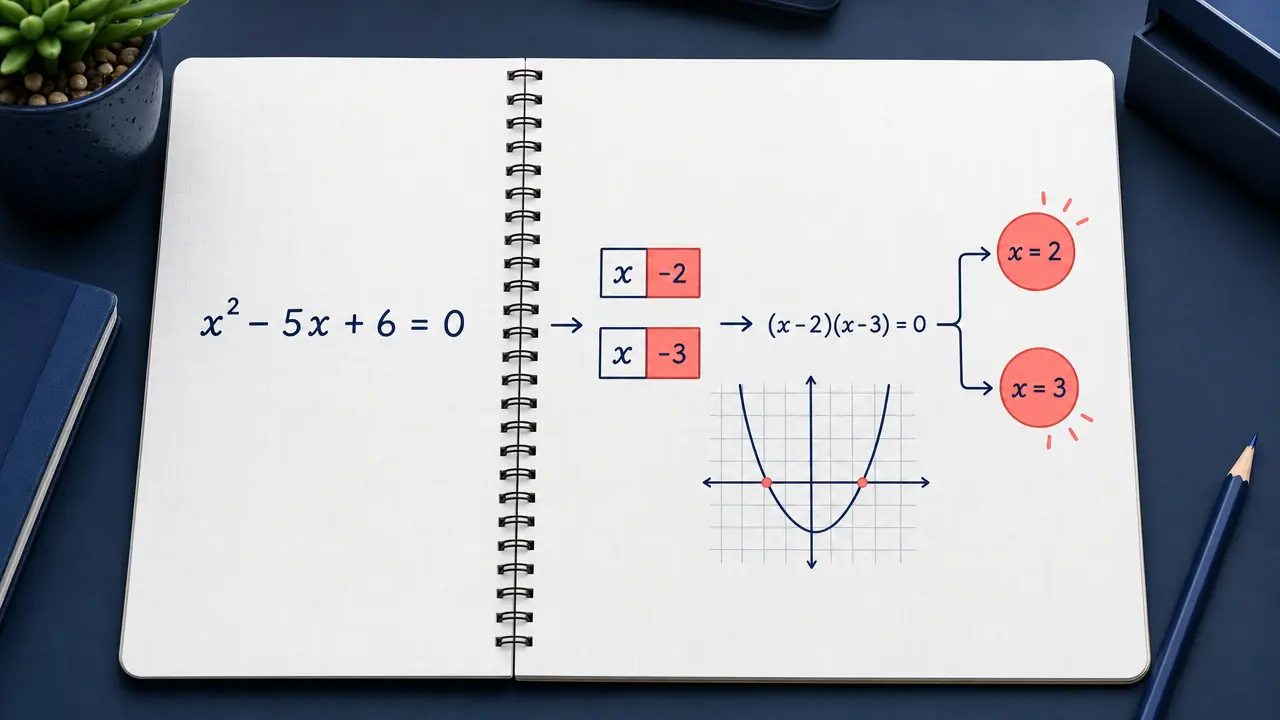
Enter a math problem or upload a clear problem image and request an answer or step-by-step explanation.
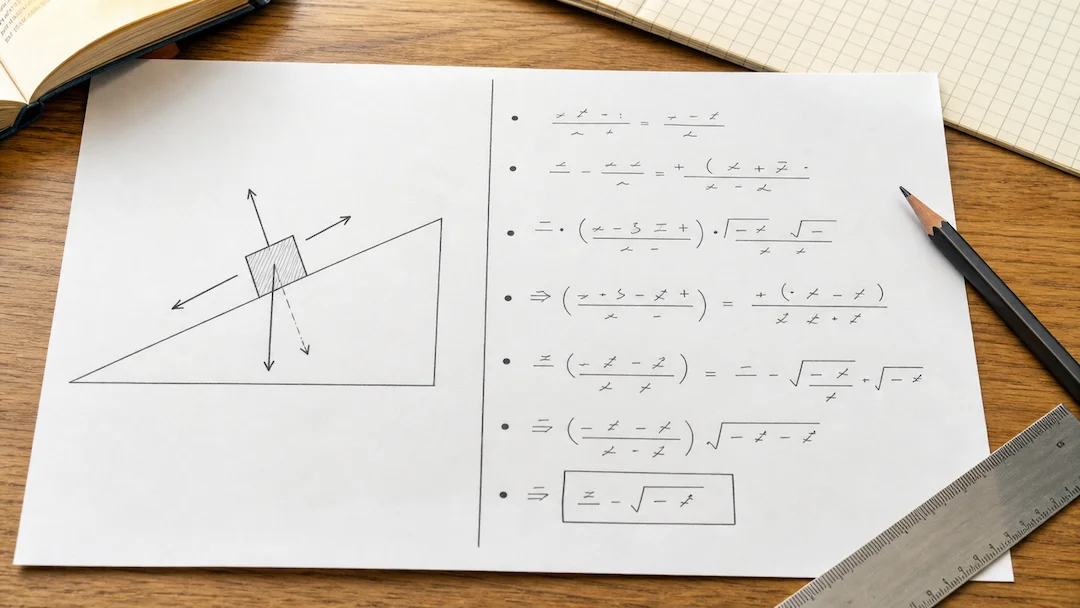
Prepare a typed or photographed physics problem with topic, level, units, and explanation depth for a structured learning review.

Use Chemistry Solver to prepare a typed or photographed chemistry problem with topic, known quantities, equation context, units, and explanation-depth controls.

Use Flashcard Maker to prepare a flashcard study-set request from a focused topic or authorized learning material.

Use Quiz Generator to prepare a focused quiz from a topic or authorized study material with deliberate difficulty and question-type controls.
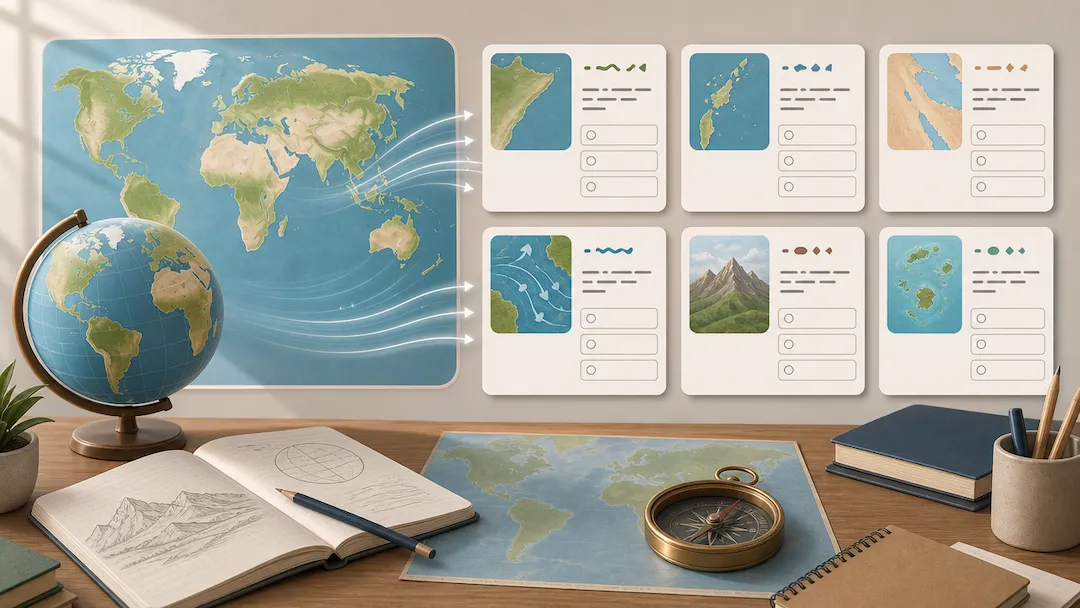
Use Geography Quiz Generator to prepare geography study questions from an authorized topic or notes with level, format, and explanation controls.