Automatic subject detection
Identify the main foreground subject without manual path drawing, giving product, portrait and object photos a focused starting point when the subject is visibly separated from the background.
Upload a product, portrait or object photo, then choose edge refinement, output format and whether natural shadows should remain.
Start with one clear subject and configure the transparent output.
Expected output

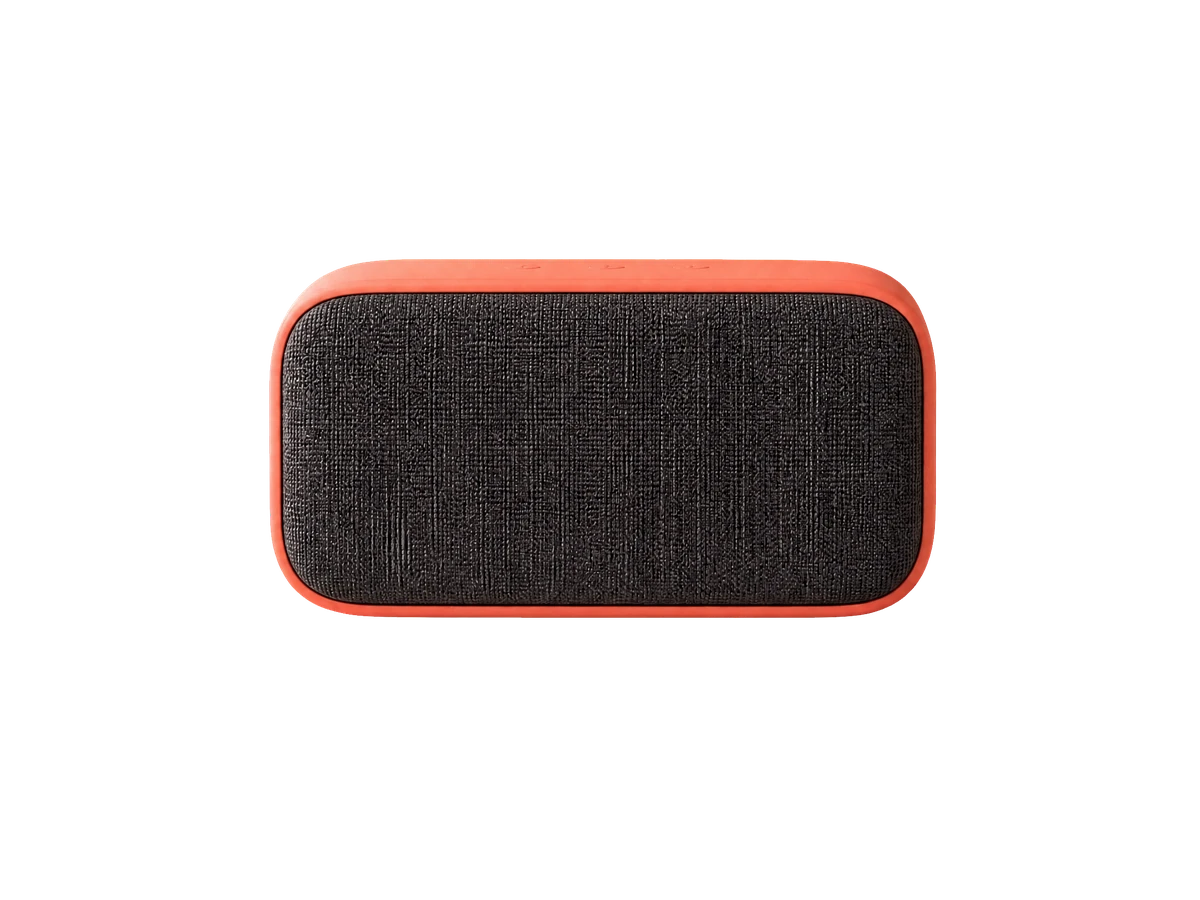
A small product isolated from a neutral desk background while preserving its contact shadow.
Key features
Identify the main foreground subject without manual path drawing, giving product, portrait and object photos a focused starting point when the subject is visibly separated from the background.
Choose a balanced or detail-focused edge treatment for hair and fine contours, then review difficult boundaries such as glass, lace, reflections and motion-blurred edges.
Prepare PNG or WebP output settings for design and commerce workflows, retaining transparency so the cutout can be checked against the intended light and dark destination backgrounds.
Choose whether useful contact or product shadows should remain where possible, then inspect the result because a shadow that works on one background may not suit another composition.
Step by step
Choose a product, portrait or object with a visible foreground subject and minimal motion blur, leaving enough contrast between the subject and its background for review.
Use balanced processing for most images or detail-focused processing for hair and fine contours, then choose PNG or WebP and decide whether useful shadows should remain.
Review the before-and-after example against the destination background, inspect hair, corners and reflective edges, then submit the Background Remover request for later processing.
FAQ
Use a clear subject with visible separation from the background. Similar foreground and background colors, motion blur and translucent objects may need extra review.
Not always. Edge refinement can guide the result, but hair, glass, lace, smoke and reflections are difficult cases that may retain artifacts.
Both can preserve transparency. PNG is widely compatible; WebP can produce smaller files in supported workflows.
It requests that useful contact or product shadows remain where possible. Review the result when placing it on a new background.
Place the cutout over both light and dark backgrounds, then inspect hair, corners, holes and reflective edges at full size. A clean preview on white alone can hide halos.
Image Tools
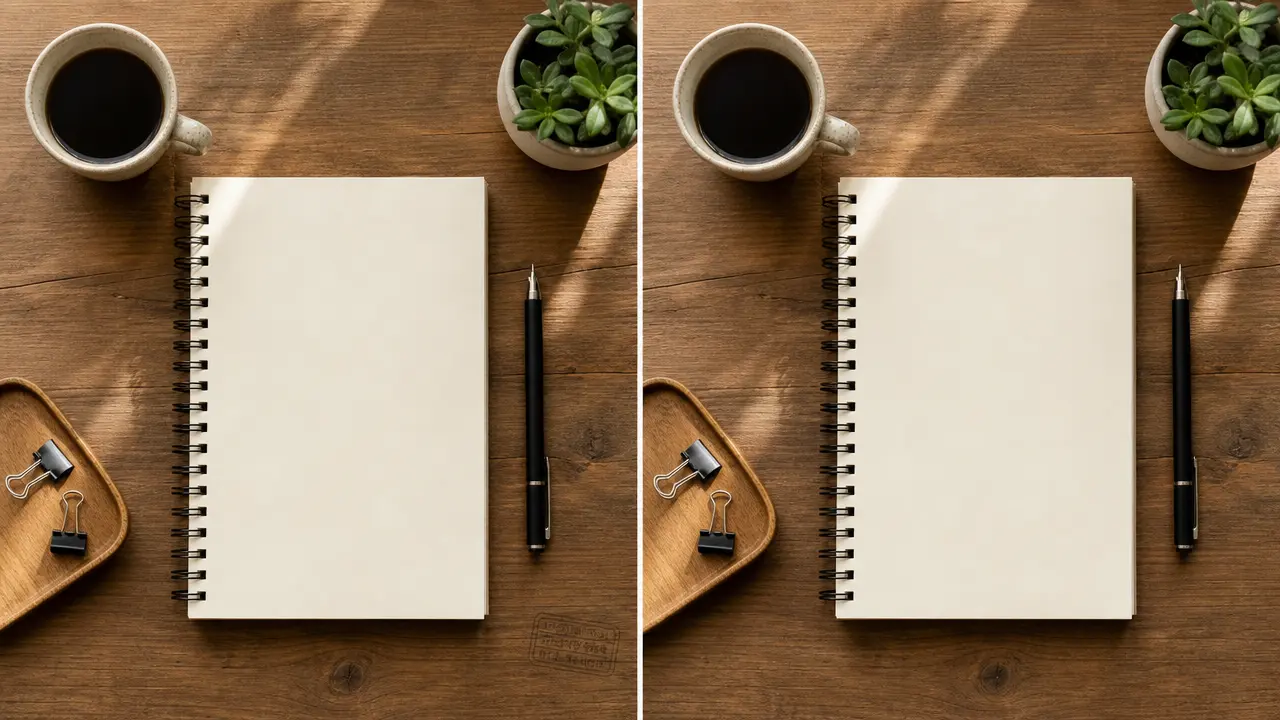
Prepare an authorized image cleanup request for removable text, logo, or date-stamp overlays with location and texture-preservation controls.
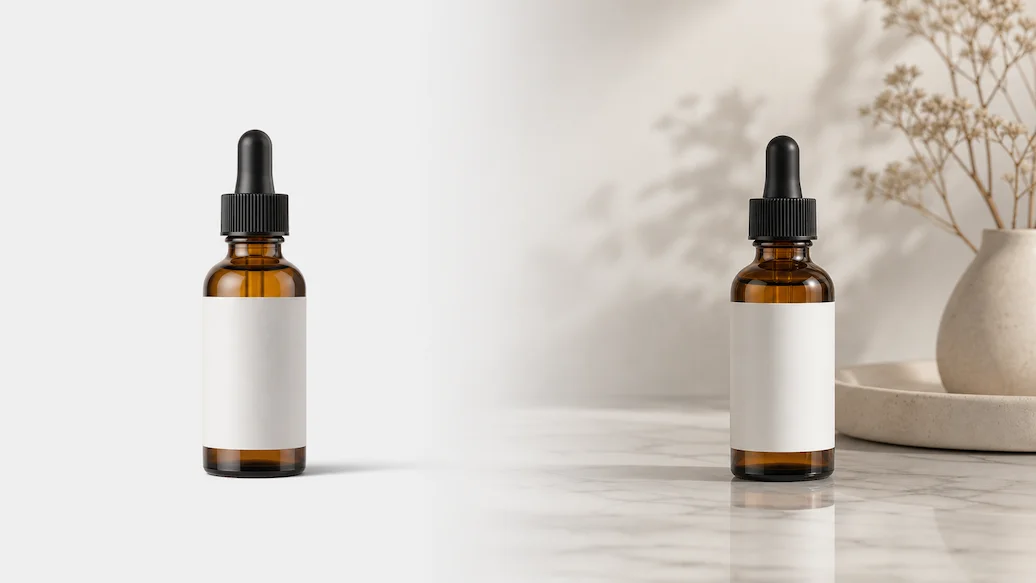
Prepare a photo cutout and background-replacement request using a solid color, custom image, AI scene, or transparent output.
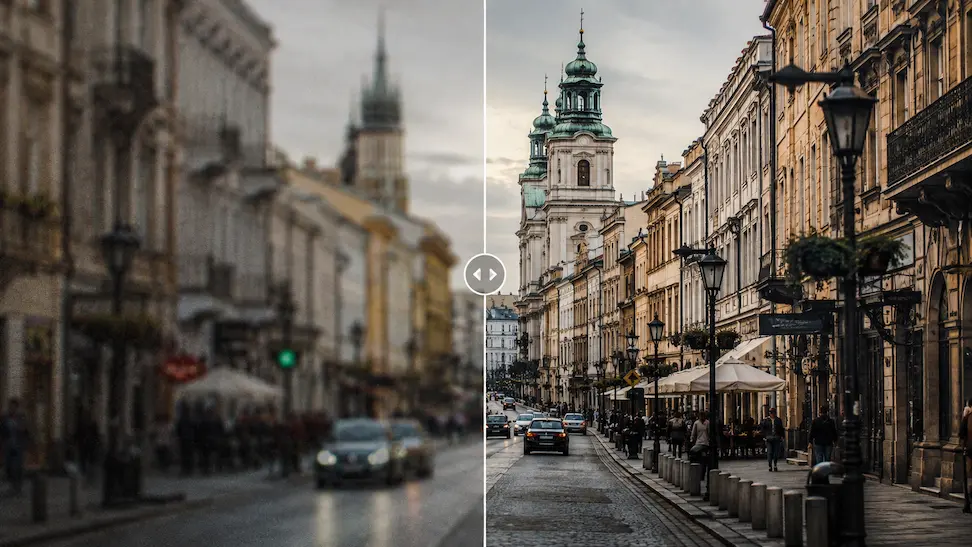
Prepare an authorized image enhancement request with detail, noise, color, and output-use controls.
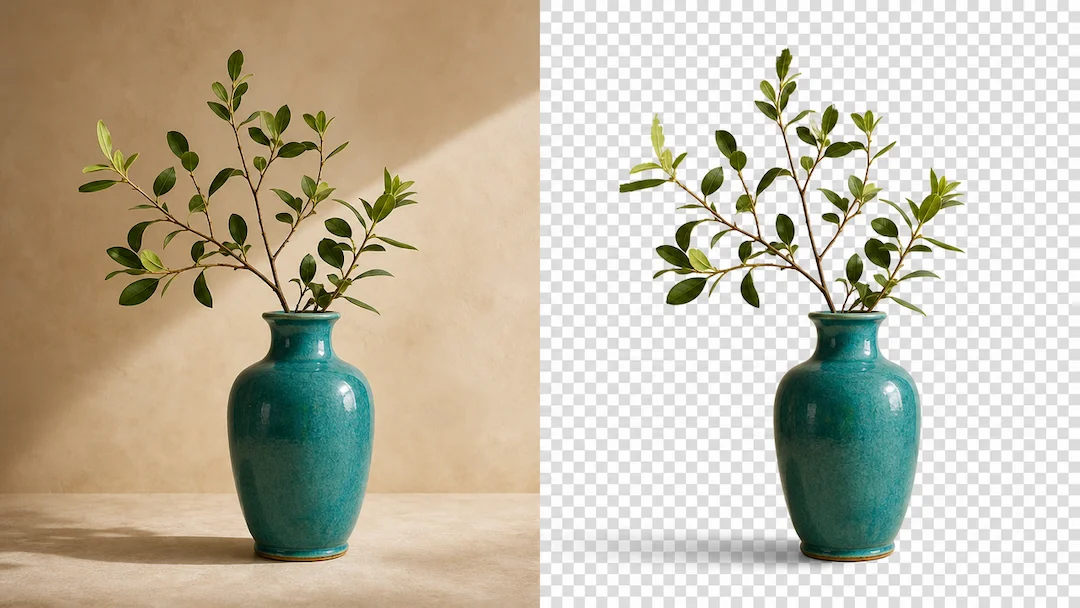
Use Transparent Background to prepare a transparent-background request from an authorized image with edge, shadow, and output controls.
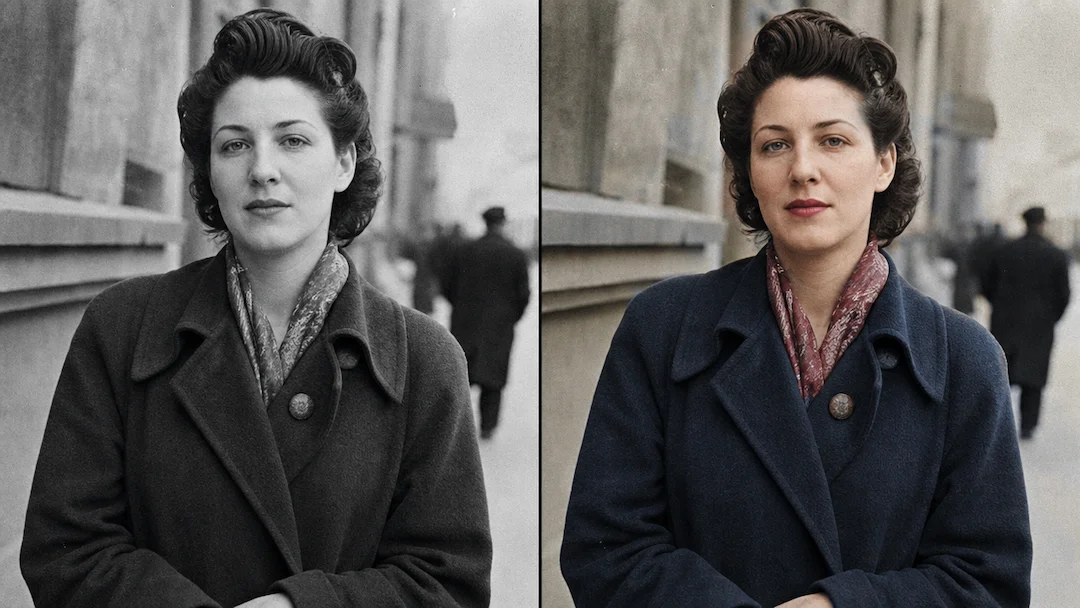
Use Photo Colorizer to prepare a careful colorization request for an authorized black-and-white photo with reference, skin-tone, clothing, and historical-context controls.
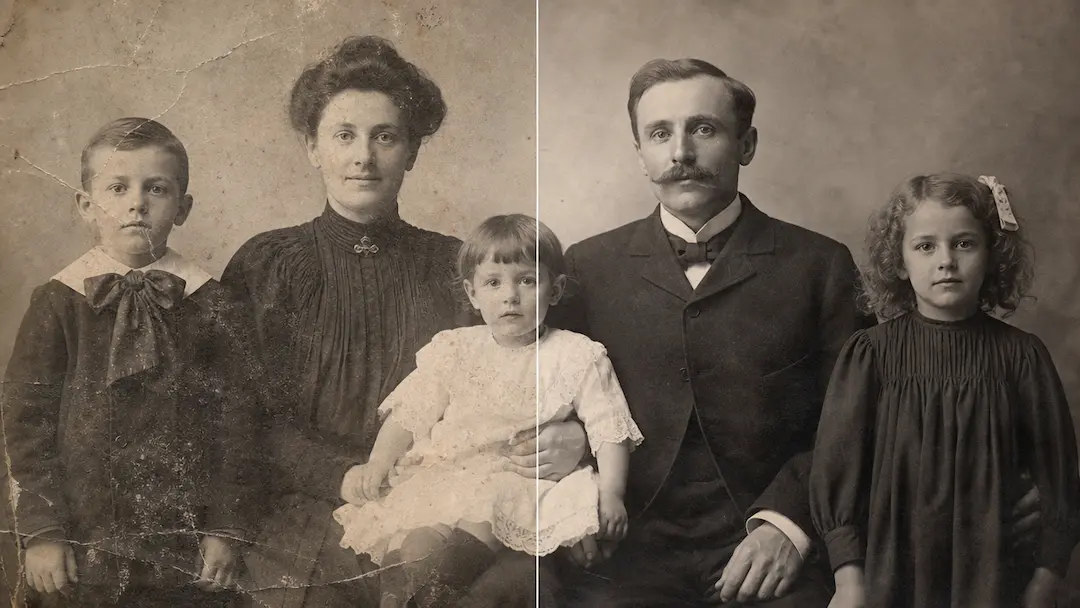
Use Restore Old Photos to prepare a careful restoration request for an authorized aged photo while preserving its historical visual character.