NexMate

Photo Colorizer for Thoughtful Black-and-White Photo Color

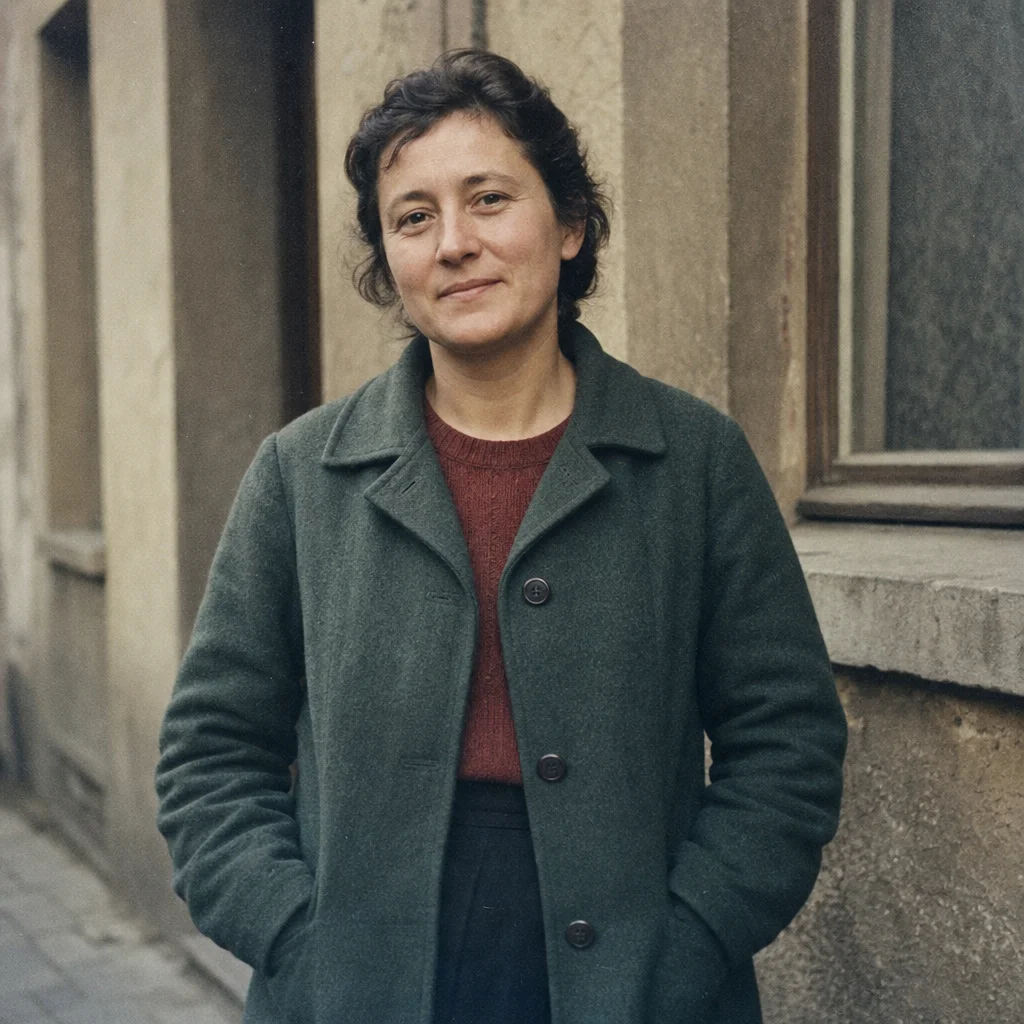
Start with the best available black-and-white scan or photo, with people, clothing, and important details visible. Choose color direction, reference confidence, skin-tone handling, clothing treatment, and grain preservation, then review the result against the original context before using it.

Create an Photo Colorizer Request

Use only material you are authorized to handle. Review source details and intended use before submitting.

JPG, PNG, or WebP, maximum 10 MB. Use only an image you may edit.

.

Key features

Key Features of Photo Colorizer

01

Controls matched to the task

The form makes color direction, reference confidence, skin-tone handling, clothing treatment, and grain preservation explicit, so the request captures the intended result and delivery context instead of relying on an ambiguous one-line instruction.

02

Source-quality guidance

Begin with the best available black-and-white scan or photo, with people, clothing, and important details visible. Clear, authorized source material gives the request a stronger factual and visual foundation for later review.

03

Review points before use

Check faces, uniforms, objects, handwriting, historical context, color plausibility, and source-photo rights before relying on a future result. Structured inputs improve clarity but never replace contextual human verification.

04

Responsible-use boundary

Use this tool within a clear boundary: do not present inferred colors as verified historical facts or use colorization to alter evidence or documentary records. Retain source material and permissions whenever they affect sharing or commercial use.

Step by step

How to Use Photo Colorizer

  1. 1

    Prepare the source and outcome

    Provide the best available black-and-white scan or photo, with people, clothing, and important details visible. Keep the request tied to the actual use case and to information, media, and people you are authorized to handle.

  2. 2

    Set the controls for the destination

    Choose color direction, reference confidence, skin-tone handling, clothing treatment, and grain preservation. Select settings that fit the intended audience and placement instead of assuming a more aggressive transformation is always better.

  3. 3

    Review key details before use

    Inspect faces, uniforms, objects, handwriting, historical context, color plausibility, and source-photo rights. Compare important details with the source and obtain qualified review when the material affects rights, safety, records, or public claims.

FAQ

FAQ of Photo Colorizer

Can Photo Colorizer recover the original historical colors?+

No. Colorization is an interpretation based on visible tones and context. Treat uncertain colors as plausible creative choices unless you can verify them with reliable reference material.

Which black-and-white photos work best?+

Use the highest-quality scan available with visible faces, clothing, and objects. Deep shadows, missing areas, severe damage, and tiny details make color decisions less reliable.

Should I preserve film grain?+

Usually yes when the source has historical or photographic character. Preserving grain helps retain the original image texture, while strong smoothing can make a restored image look less credible.

Can I colorize uniforms or official records?+

You can prepare a visual interpretation, but must not represent inferred colors as verified facts. Review uniforms, labels, dates, and documentary context before using a colorized image publicly.

Is Photo Colorizer the same as photo restoration?+

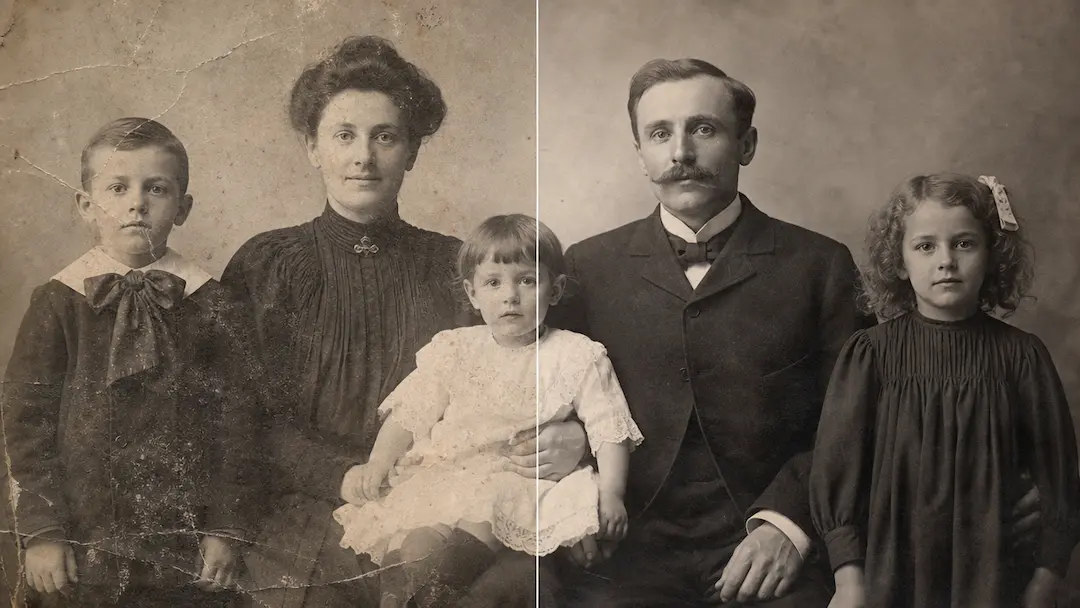
No. Colorization focuses on adding plausible color. Restoration focuses on repairing damage, contrast, and defects. Both require source comparison when an image has historical, evidentiary, or archival value.