Four background starting points
Select a transparent result, solid color, authorized custom background image, or AI scene direction. Each option supports a different workflow, from marketplace catalog images to portrait presentation and compositing.
Keep the subject readable, choose a credible new setting, and specify edge refinement, shadow treatment, and export format for the final use case.
Set the controls that match your real use case, then review source rights and critical details before submitting.
Expected output
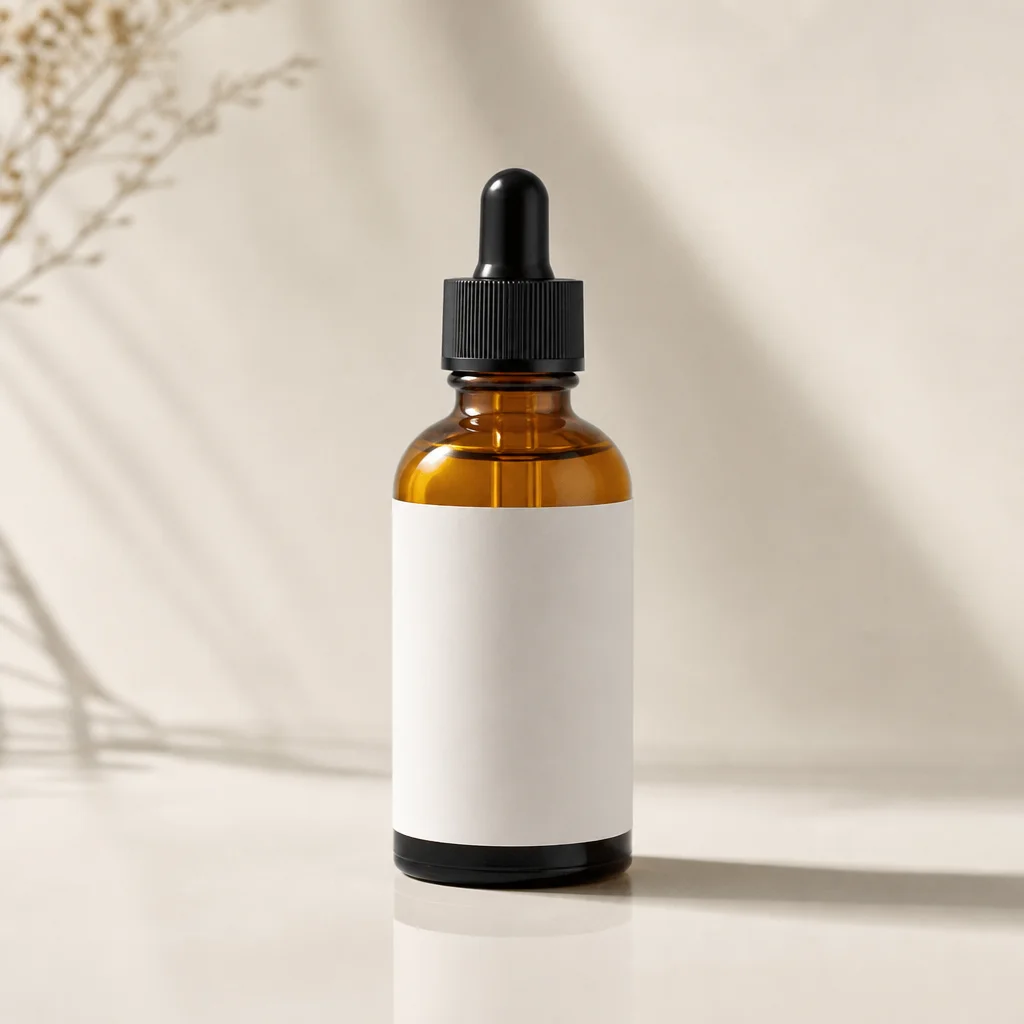
An unbranded amber bottle sits on a neutral studio background with a grounded shadow, illustrating a credible product-background replacement direction.
Key features
Select a transparent result, solid color, authorized custom background image, or AI scene direction. Each option supports a different workflow, from marketplace catalog images to portrait presentation and compositing.
Choose subject positioning and scene context before preparing the request. This gives products, people, and objects a better chance of looking naturally placed instead of appearing pasted onto an unrelated background.
Specify natural or precise edges and decide whether a contact shadow should be retained or created. Hair, transparent objects, reflections, and small product contours deserve review before the replacement image is published.
Set transparent PNG, WebP, or JPG delivery according to the destination. A transparent asset may be right for a design system, while an optimized product image may need a finished background and a web-friendly format.
Step by step
Use an authorized image with a visible subject and enough contrast around edges for hair, products, or objects to be distinguished.
Choose transparent, solid color, custom image, or AI scene, then set position, edge, shadow, and export preferences.
Check scale, contact shadow, reflections, and subject edges. Do not use a new setting to make misleading claims about a product, person, event, or location.
FAQ
Transparent output leaves the subject ready for later design work. Solid color suits catalog or profile use. An AI scene provides a new contextual setting, while a custom background image should be one you are authorized to use.
Use an image with a clear subject, visible edges, and enough separation from the old background. Fine hair, glass, translucent objects, and similar-colored backgrounds need more careful review.
Yes, a neutral studio, solid color, or other credible setting can be specified. Check product edges, label legibility, scale, and shadows, and do not change the image in a way that makes misleading product claims.
A subtle contact shadow helps an object look grounded in a scene. It should match the light direction and surface, because an inconsistent shadow can make even a clean cutout look artificial.
Choose PNG when transparency is needed, WebP for efficient web delivery with a finished image, and JPG when a non-transparent photographic file is required. Match the format to the next step in your workflow.
Image Tools
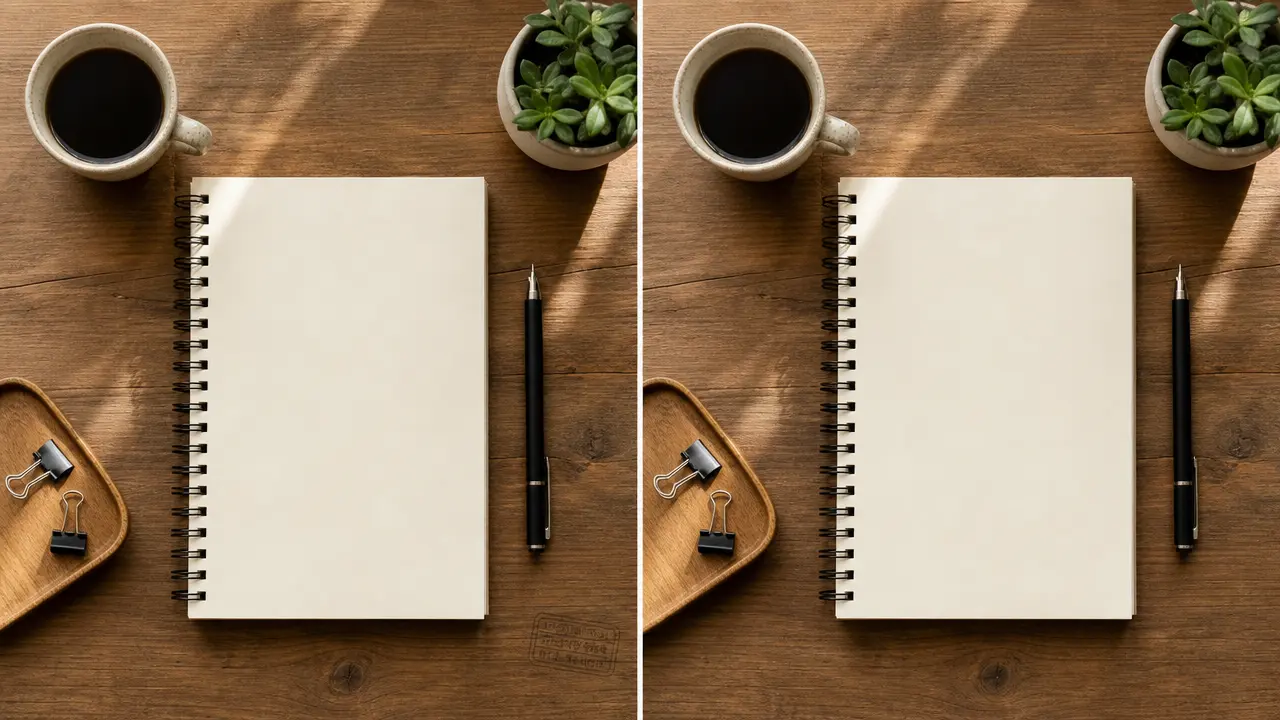
Prepare an authorized image cleanup request for removable text, logo, or date-stamp overlays with location and texture-preservation controls.
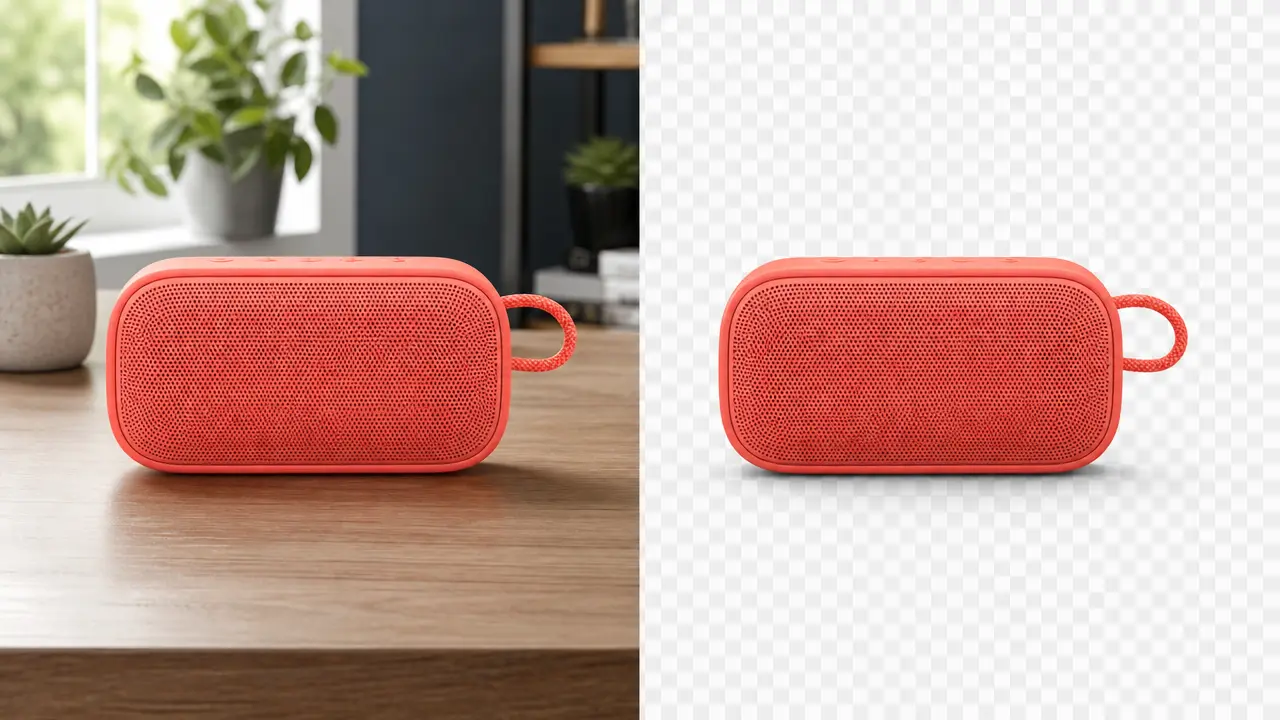
Isolate the main subject and prepare a transparent image with edge and shadow controls.
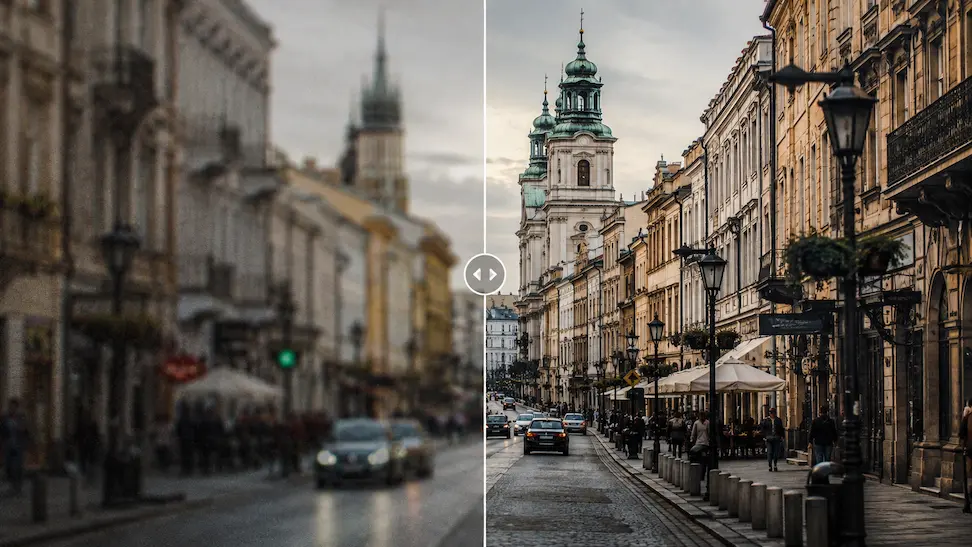
Prepare an authorized image enhancement request with detail, noise, color, and output-use controls.
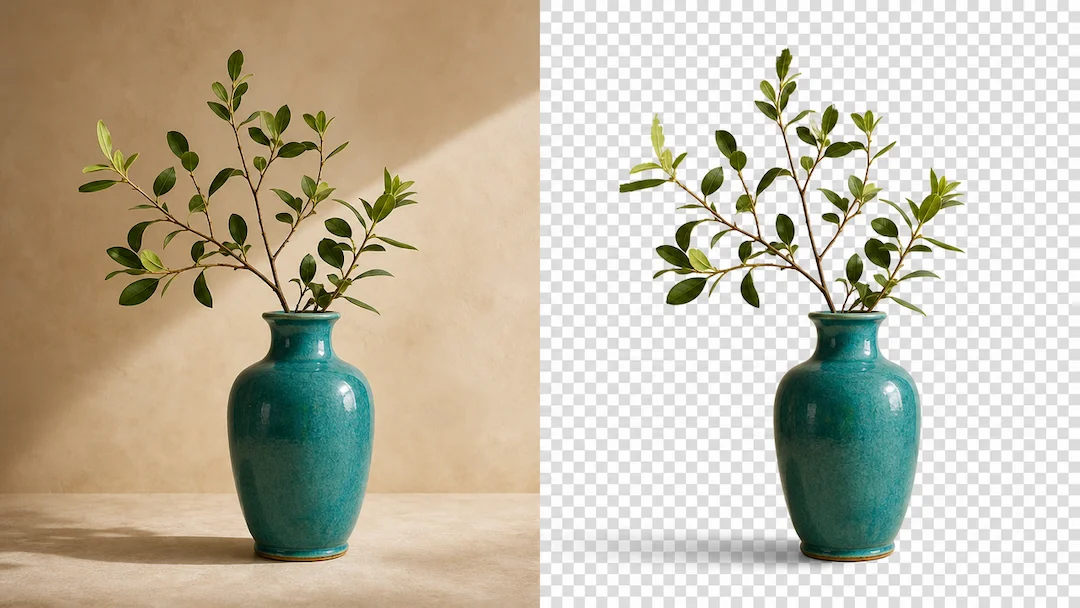
Use Transparent Background to prepare a transparent-background request from an authorized image with edge, shadow, and output controls.
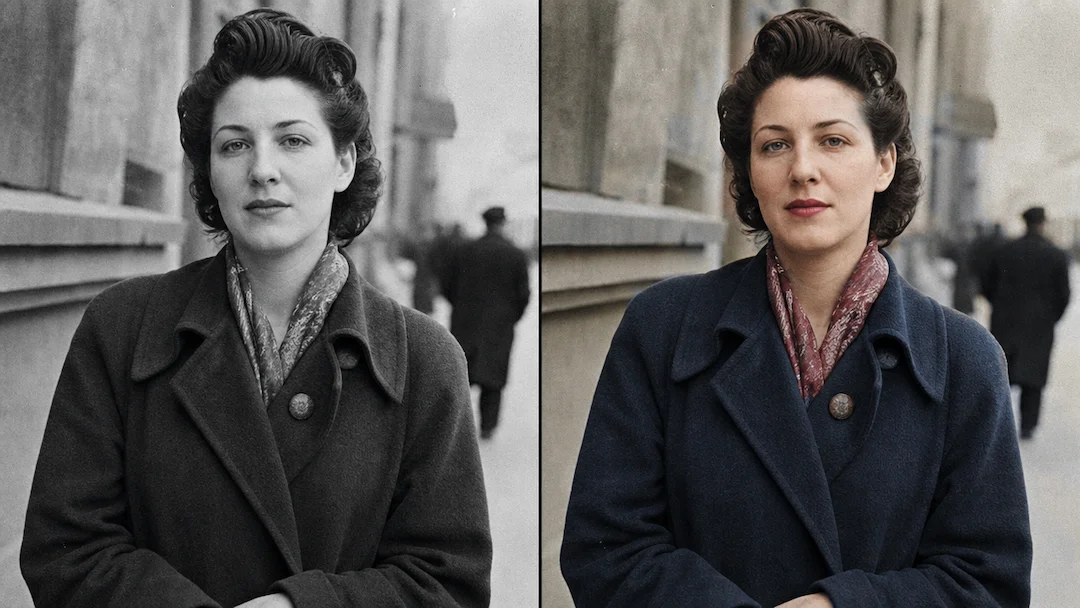
Use Photo Colorizer to prepare a careful colorization request for an authorized black-and-white photo with reference, skin-tone, clothing, and historical-context controls.
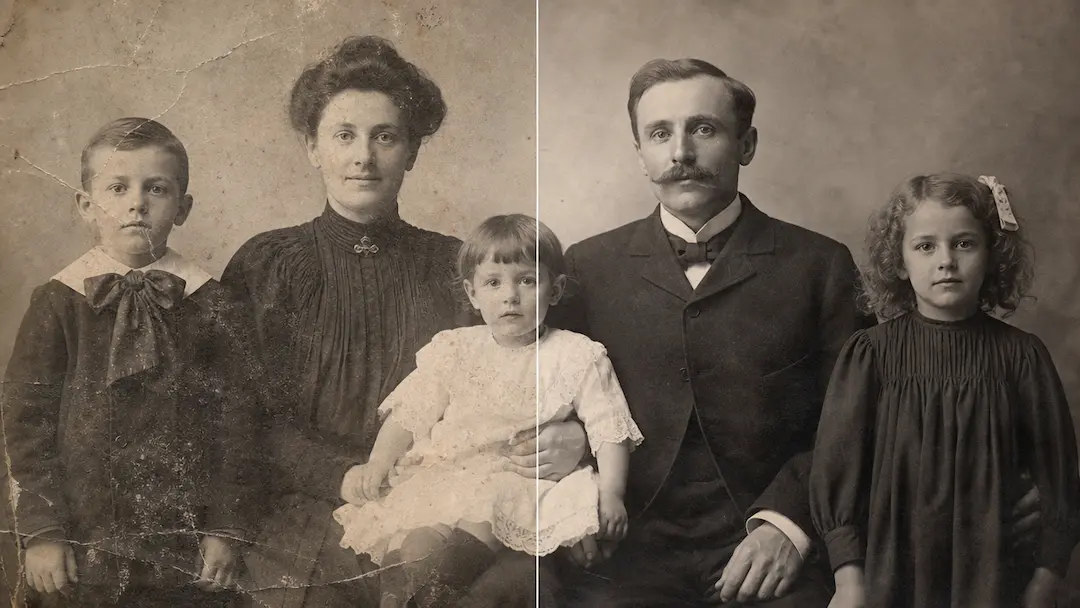
Use Restore Old Photos to prepare a careful restoration request for an authorized aged photo while preserving its historical visual character.