No-green-screen background brief
Set up a replacement request for footage captured in an ordinary room, office, or outdoor location. A clear source, visible subject, and chosen output make no-green-screen cutout expectations much less ambiguous.
Choose a replacement or blur treatment, preserve natural subject edges, and specify transparent or green-screen delivery when the workflow needs it.
Set the controls that match your real use case, then review source rights and critical details before submitting.
Expected output
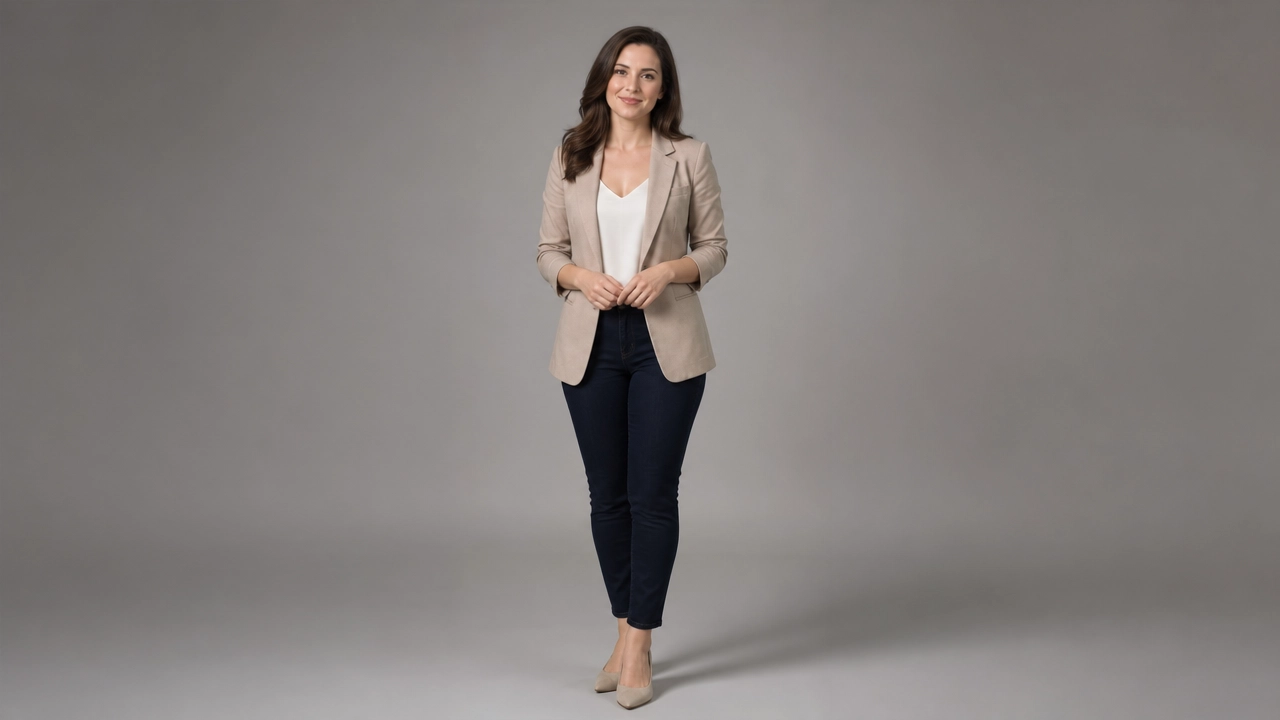
A presenter remains naturally edged and lit against a neutral studio backdrop, illustrating a clean background-replacement direction for a professional video.
Key features
Set up a replacement request for footage captured in an ordinary room, office, or outdoor location. A clear source, visible subject, and chosen output make no-green-screen cutout expectations much less ambiguous.
Choose a new scene, a privacy-friendly blur, transparent delivery, or a green-screen background for later compositing. The selected output mode gives the request a real editing destination rather than just a visual preference.
Control hair and hand edge treatment, shadow behavior, and source-light matching. These are the details viewers notice first when a presenter, product, or moving subject has been separated from its original background.
Set landscape or vertical framing for YouTube, presentations, TikTok, Reels, or product promotion. Keeping the intended crop in the request helps prevent a background decision from hiding the subject in the final placement.
Step by step
Use footage with a visible subject and avoid source shots where the subject repeatedly blends into a similarly colored background.
Select a replacement scene, blur, transparent, or green-screen output, then set edge and lighting treatment for the intended edit.
Review hair, hands, shadows, reflections, and any on-screen text at the delivery ratio before treating the edited video as ready to share.
FAQ
No. The request is designed for ordinary footage, but a visible subject with contrast against its surroundings gives a background-removal workflow more useful source material. Green screen can still be selected as an output for later editing.
Choose blur when privacy or focus is the goal and the original setting should not be identifiable. Choose a replacement scene when you need a controlled visual setting, while checking that it does not misrepresent a location or event.
Both support a later editing workflow. Transparent output can be composited over a new design; green screen can be keyed in video software. Pick the format required by the next production step.
Fine, fast-moving, or semi-transparent edges are difficult to separate from a background. Inspect those areas together with shadows and reflections, especially when the video contains a close-up presenter.
You can prepare a request for an authorized recording, but do not use replacement to falsely imply a location, attendance, affiliation, or evidence. Preserve the source whenever the original context matters.
Video Tools
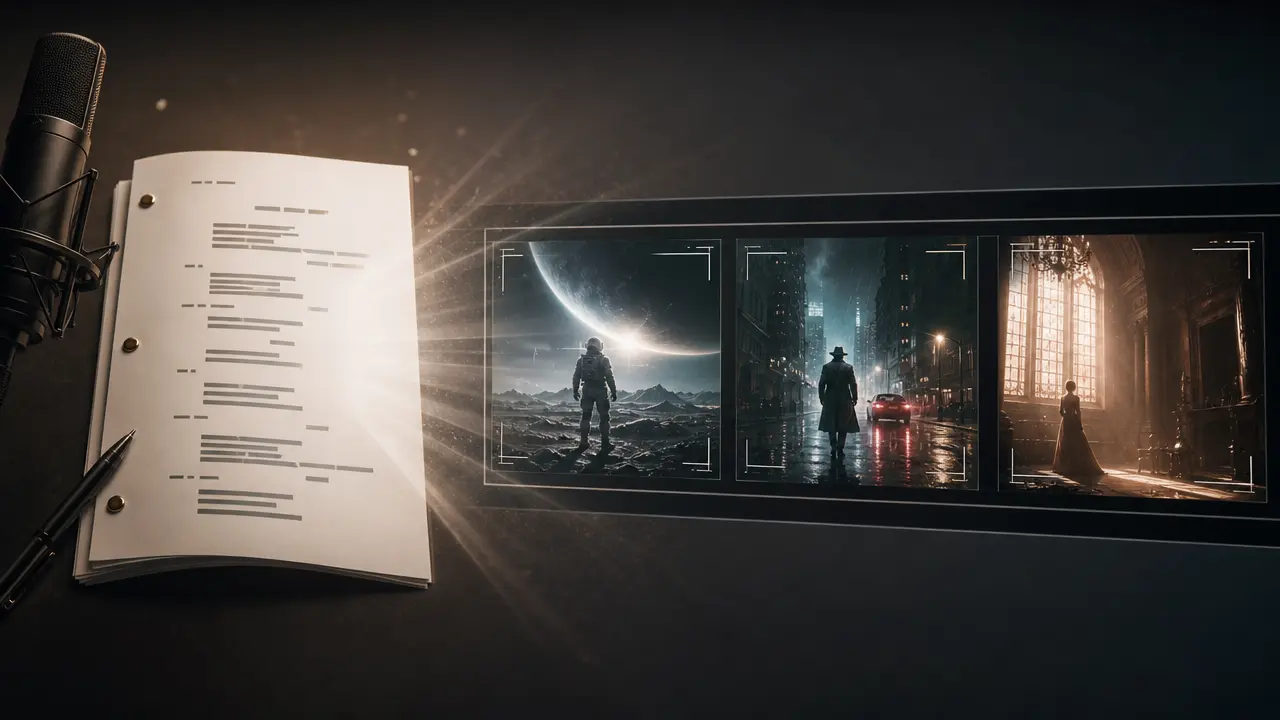
Structure a written script into a video concept with visual style, voice, captions and framing controls.

Use Audio to Video to prepare an audio-led video concept with deliberate visual pacing, style, and output framing.
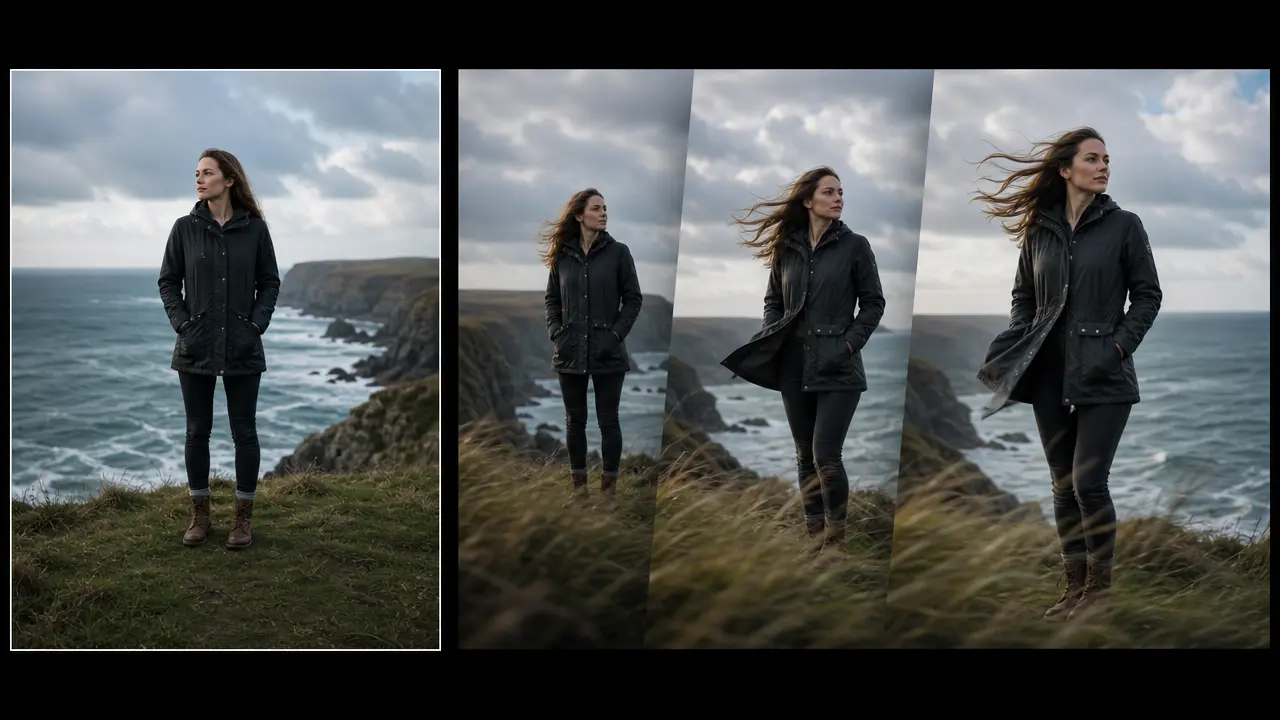
Plan a short motion treatment from a still image with direction, movement strength, duration, and output framing controls.
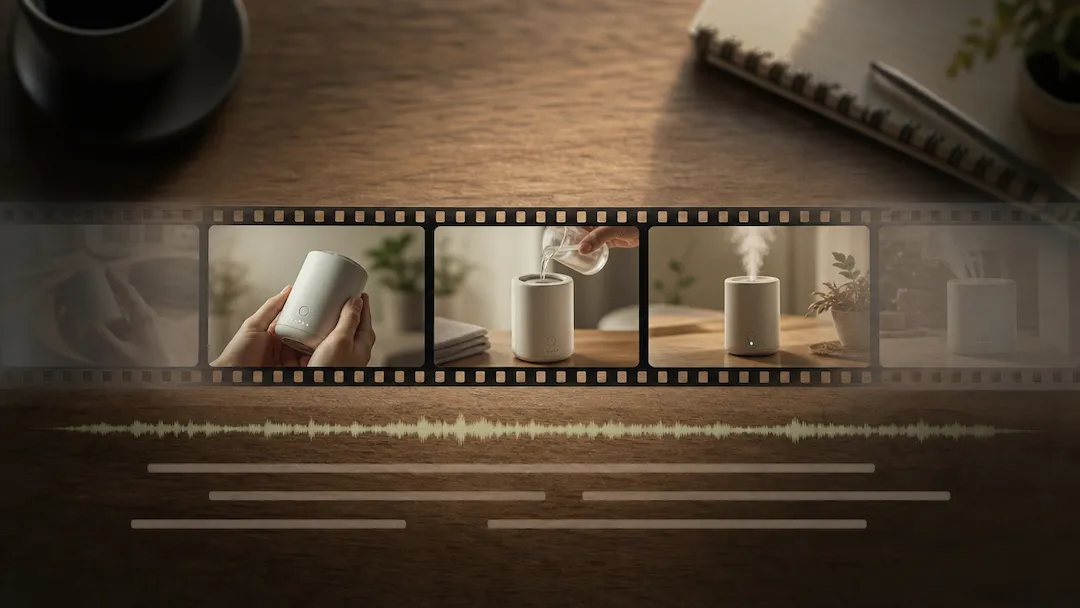
Use Video Editor to prepare an authorized video editing request with a defined edit goal, pacing, captions, delivery ratio, and review checklist.
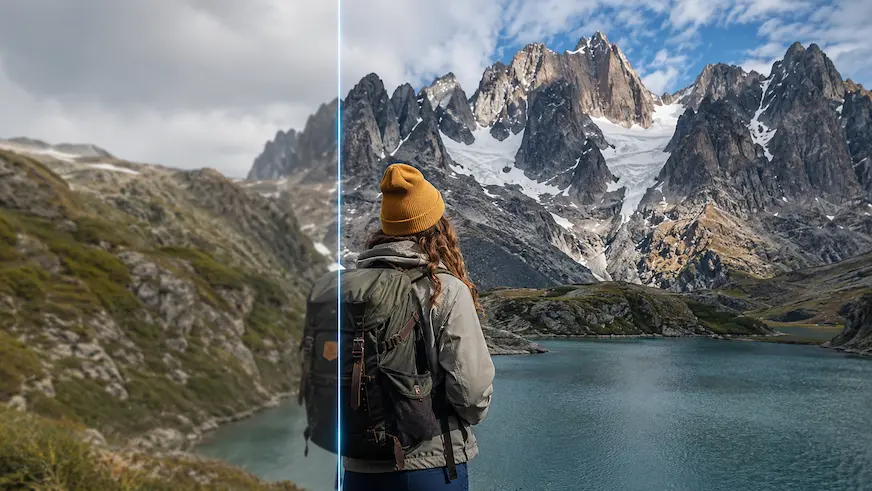
Use Video Enhancer to prepare a reviewable video-quality improvement request for authorized footage.
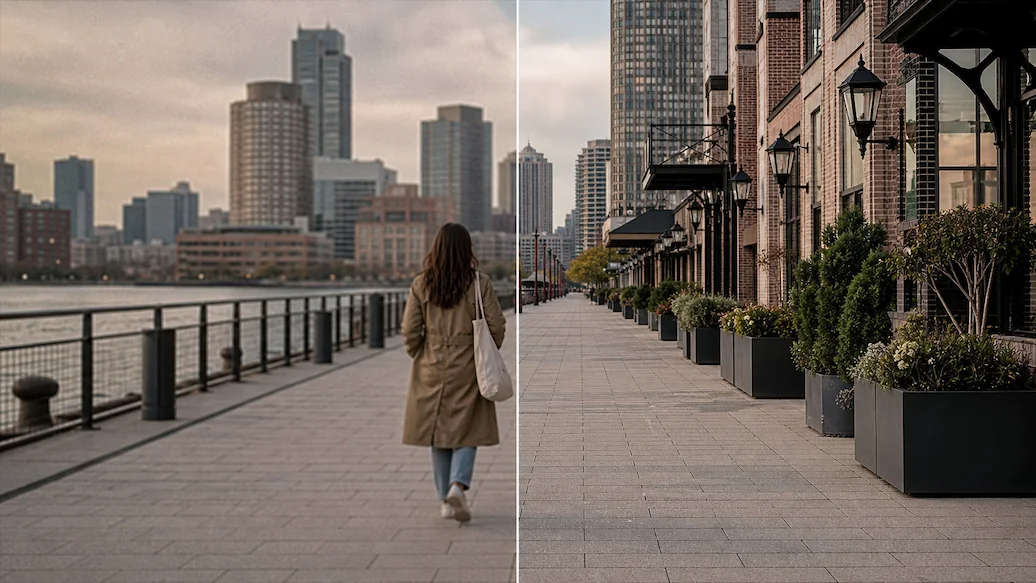
Use Video Upscaler to prepare an authorized video upscaling request with a target resolution, artifact controls, frame handling, and intended delivery use.