Text-to-image creative control
Write the subject, location, time of day, mood, and key objects in one prompt. A scene with concrete details such as a girl waiting at a seaside train stop at dawn gives the image request more visual structure.
Describe the character, setting, mood, and key visual details you want to see, then choose a composition. Ghibli Generator is a text-to-image workflow for building whimsical, hand-drawn fantasy scenes from an original prompt.
Choose the options that match your source and intended result, then submit the prepared request.
Expected output
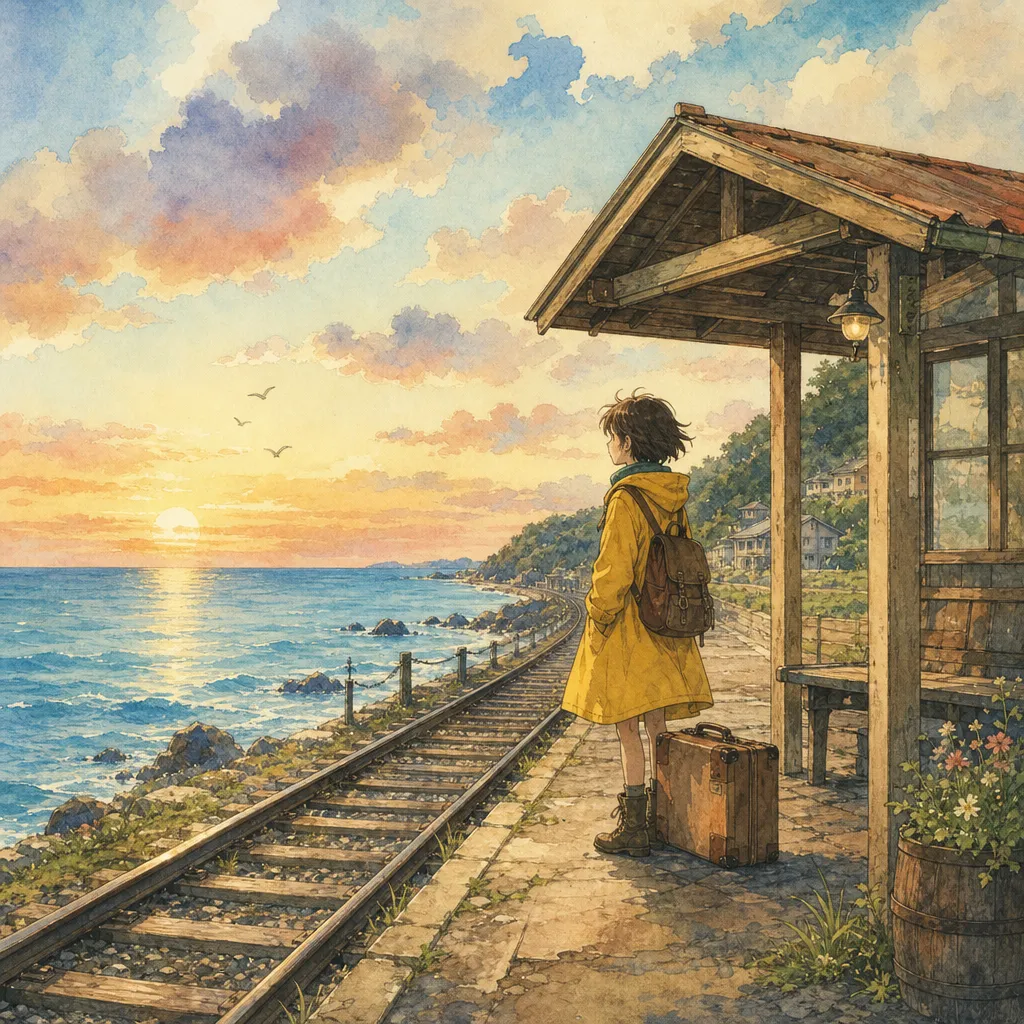
An original dawn scene of a young traveler waiting beside a small seaside train stop, with a yellow raincoat, quiet waves, and warm hand-drawn color.
Key features
Write the subject, location, time of day, mood, and key objects in one prompt. A scene with concrete details such as a girl waiting at a seaside train stop at dawn gives the image request more visual structure.
The tool focuses on the soft color, expressive linework, storybook atmosphere, and nature-rich visual language people seek in Ghibli-style art. Start with an original scene rather than relying on a film plot or named character.
Choose portrait, square, or landscape framing before submitting. Use portrait for character-led art, square for a compact social post, and landscape when the environment is as important as the subject.
Use the prompt to steer weather, season, lighting, emotion, clothing, foreground objects, and camera distance. These details create a recognisable scene and make the generated image more useful as an illustration or concept reference.
Step by step
Write a prompt that names the main subject, location, lighting, mood, and important objects. Start with your own story seed instead of asking for a recreation of an existing film frame or character.
Pick portrait, square, or landscape based on the scene. Think about whether the character, a wide environment, or a balanced social image should occupy the most visual space.
Submit the prompt, then assess whether the composition, atmosphere, and subject details match your intent. Refine concrete visual details in a new prompt instead of adding a long list of unrelated style words.
FAQ
Ghibli Generator prepares a text-to-image request for a whimsical hand-drawn fantasy illustration. Describe an original character, place, mood, and scene details, then choose an image ratio.
No. This page is designed around text-to-image generation. Write a clear image description to build a new illustrated scene; use the separate photo conversion tool when your goal is to transform an existing photo.
Mention who or what is in the scene, where it happens, the time of day, lighting, mood, and a few meaningful details. For example, describe an original bicycle repair shop under summer rain rather than only writing magical anime.
Use portrait for a character-focused illustration, square for an avatar or feed post, and landscape for a wide environment, travel scene, or storybook moment. The ratio changes the composition, not the core idea.
No. Ghibli Generator is an independent creative tool and is not affiliated with Studio Ghibli. Avoid asking for named characters, film scenes, logos, or material that would be presented as official licensed artwork.
Image Effects

Use World Cup AI Effects & Templates to prepare an original football-fan photo effect with generic celebration props and no claim of official competition affiliation.
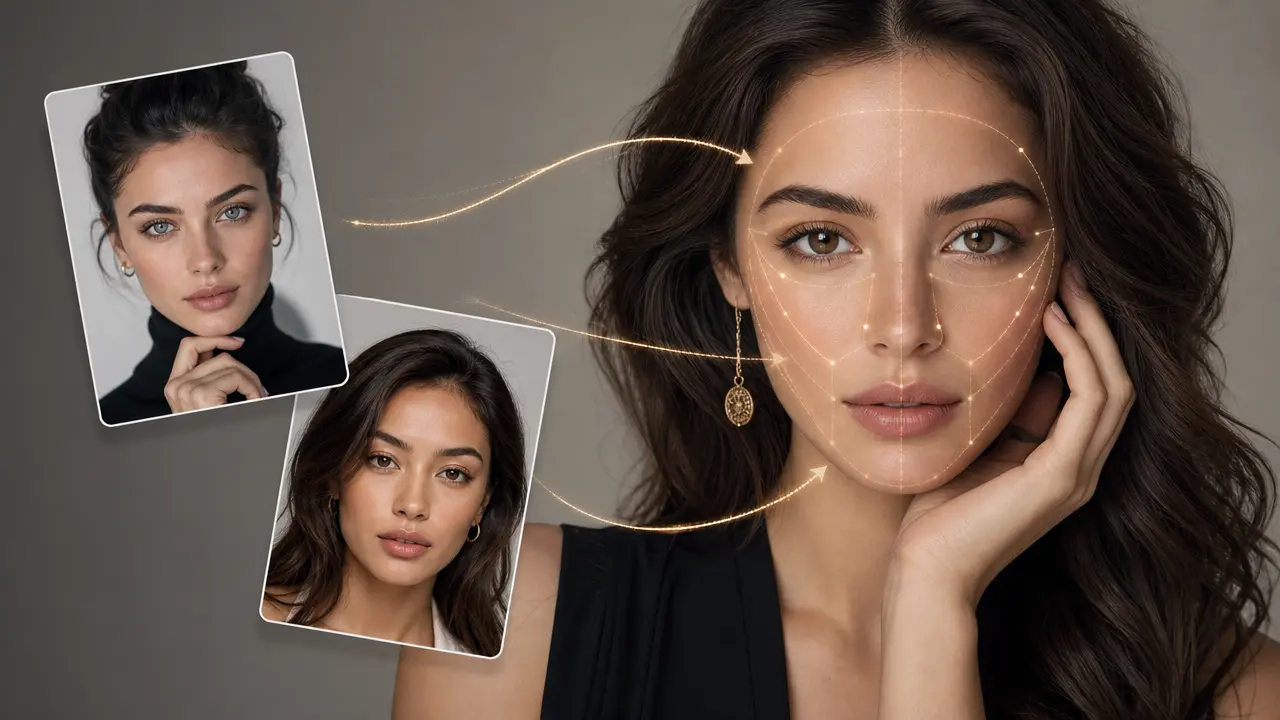
Combine a target photo and an authorized face reference with adjustable blending.
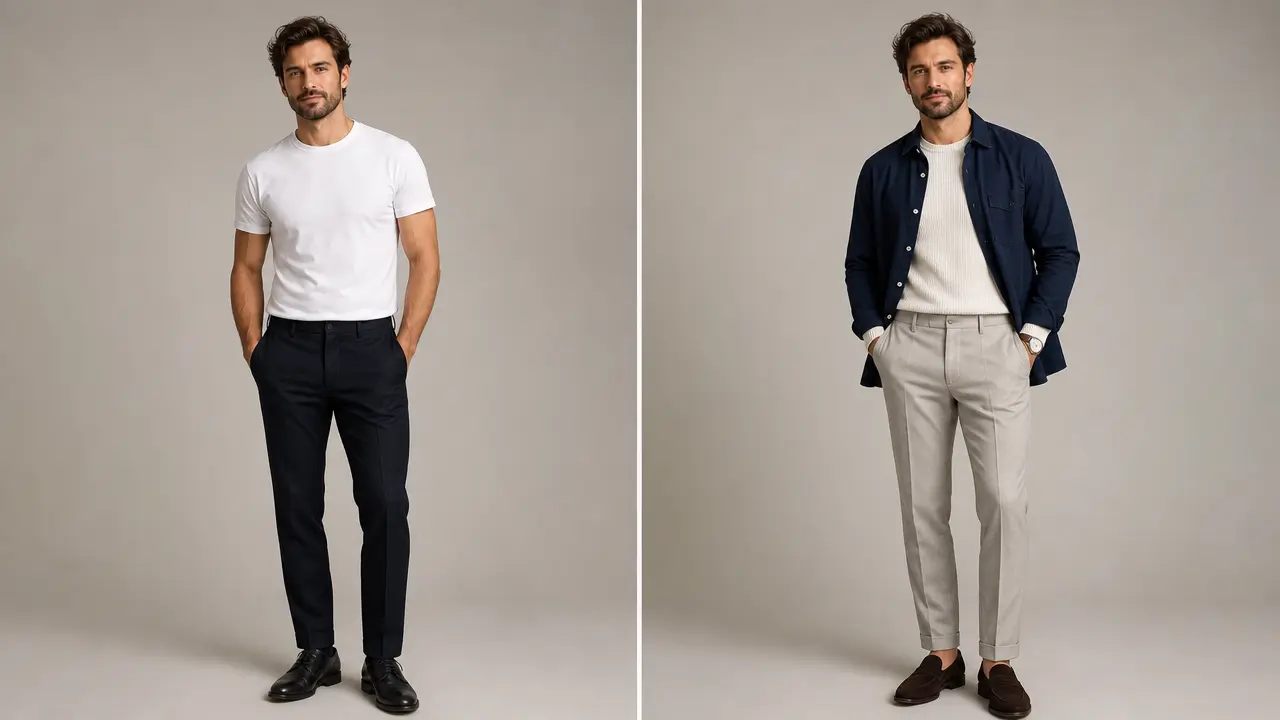
Explore an outfit direction for an authorized portrait with garment style, color, occasion, and composition-preservation controls.
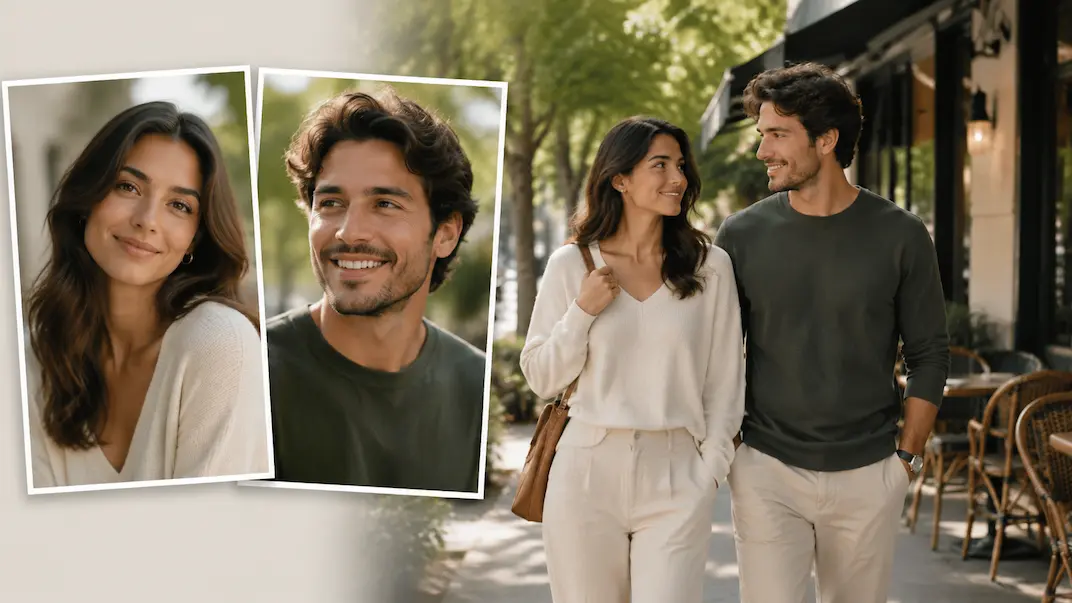
Use AI Couple Photo Maker to plan a respectful couple-photo visual concept from two authorized adult portraits.
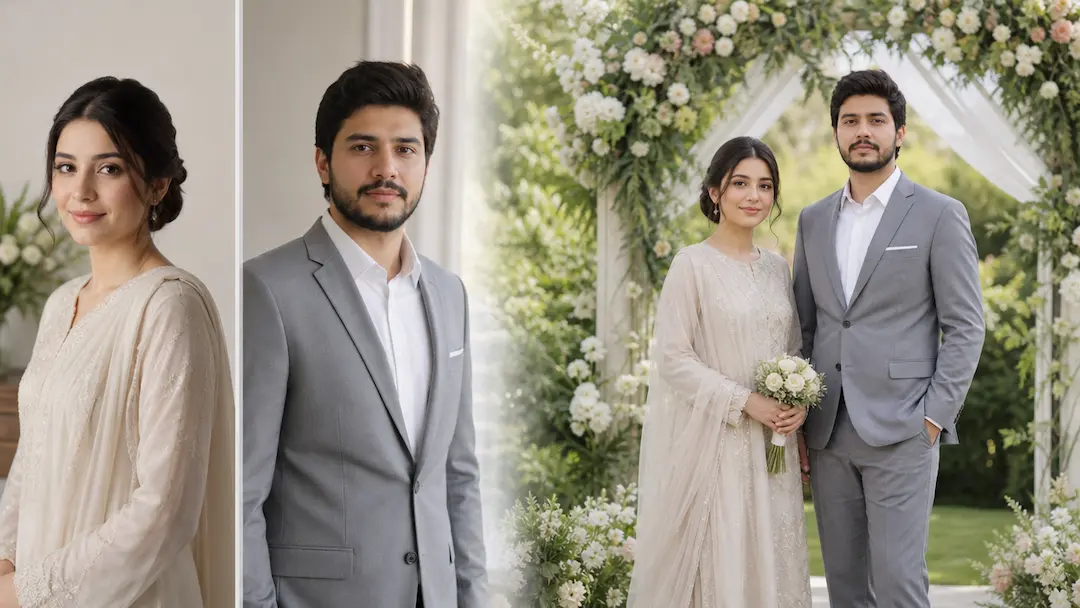
Use AI Wedding Photo Generator to prepare a respectful wedding-photo concept from authorized adult portraits with scene and styling controls.
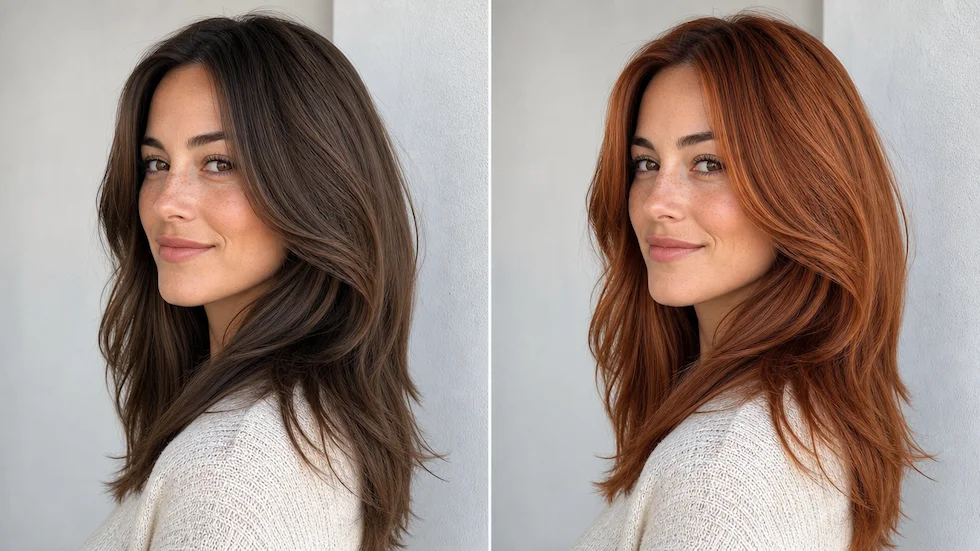
Preview a chosen or custom hair color on an authorized portrait with roots, highlights, skin tone, and lighting in view.