Receipt and invoice context
Classify the document as a receipt, invoice, or other expense record before requesting extraction, helping the review workflow focus on the fields that are commonly relevant for that document type.
Upload a document you are authorized to process, choose the fields you need, and review every extracted amount, date, vendor, and tax detail against the original record.
Upload an authorized document and verify every extracted financial field against the original before accounting, reimbursement, or payment use.
Expected output
sample-cafe-receipt.pdf
1 pagesExtracted result
Vendor: Harbor Cafe Date: 2026-06-14 Currency: USD Subtotal: 18.50 Tax: 1.67 Total: 20.17 Review every value, tax rule, and supporting receipt image before recording or reimbursing this expense.
A sample receipt review showing vendor, date, currency, subtotal, tax, total, and a reminder to check the original before accounting use.
Key features
Classify the document as a receipt, invoice, or other expense record before requesting extraction, helping the review workflow focus on the fields that are commonly relevant for that document type.
Choose practical targets such as vendor, date, total, tax, currency, line items, or invoice number so the intended output can be reviewed as structured information rather than a loose text transcription.
Specify the document language and currency context where known, which can make number formats, decimal separators, merchant names, and tax labels easier to review against the source image or PDF.
The page treats extracted fields as a review aid only and prompts users to verify totals, tax treatment, exchange rates, and mandatory accounting data before filing, reimbursement, or payment decisions.
Step by step
Use a legible receipt or invoice you are permitted to process. Remove unnecessary personal, payment-card, banking, medical, or confidential information before upload whenever possible.
Select the document type, language, currency, and requested fields. Use the original currency and document date rather than guessing missing details from memory.
Compare every extracted field with the source document, especially totals, tax, invoice number, and vendor. Use verified data and your organization’s accounting policy for any financial record or decision.
FAQ
Use clear receipts, invoices, and similar expense records that you are authorized to process. Results depend on legibility, layout, language, image quality, and whether important fields are visible.
No. Numbers can be misread because of blur, handwriting, unusual layouts, discounts, multiple tax rates, or currency formatting. Verify all financial values against the original document before using them.
You can submit an authorized PDF, but text recognition quality varies for scans, photographs, receipts with faded ink, and documents with complex tables. A clean, straight, high-resolution scan is preferable.
No. It is a document-review and extraction workflow, not a bookkeeping system, tax adviser, payment authorization tool, or substitute for your organization’s controls and approved accounting process.
Upload only documents you are permitted to process and remove unnecessary sensitive information first. Follow your organization’s privacy, retention, finance, and data-handling requirements for every record.
AI Document Tools
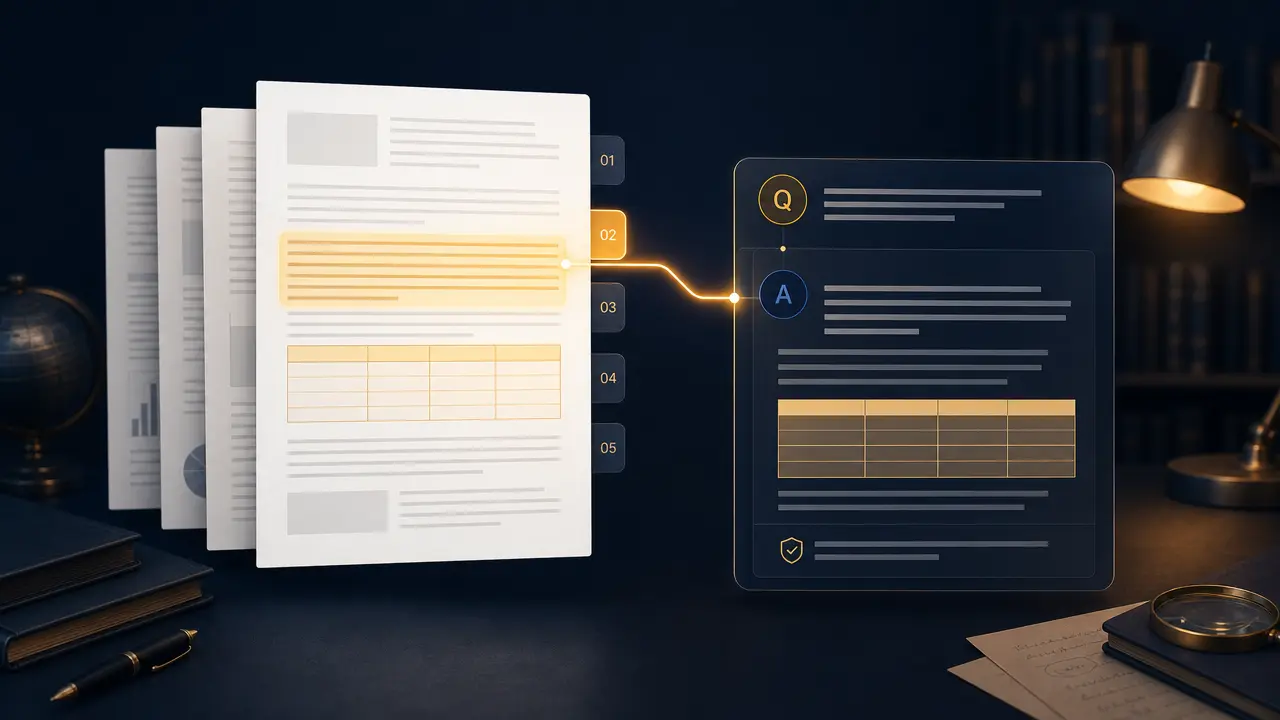
Ask focused questions about a PDF and request page-aware answers in your preferred language.
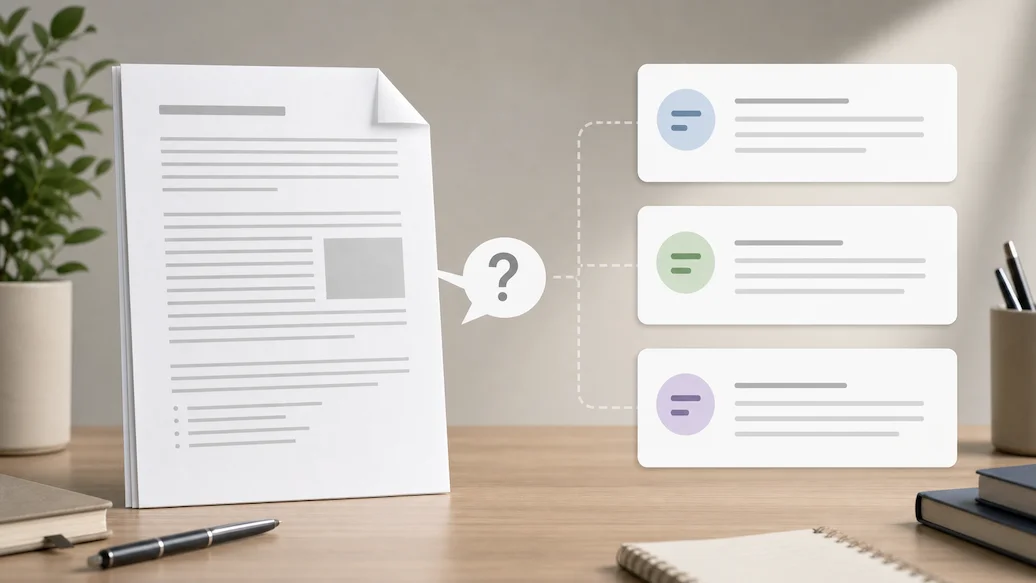
Use Chat Doc to prepare an authorized document-question request with file type, question scope, answer format, and citation expectations.

Use Chat PPT to prepare an authorized slide-deck question request with slide scope, answer format, citation preference, and response-language controls.

Use Resume Checker to prepare a resume-review request focused on clarity, relevance, and truthful presentation.
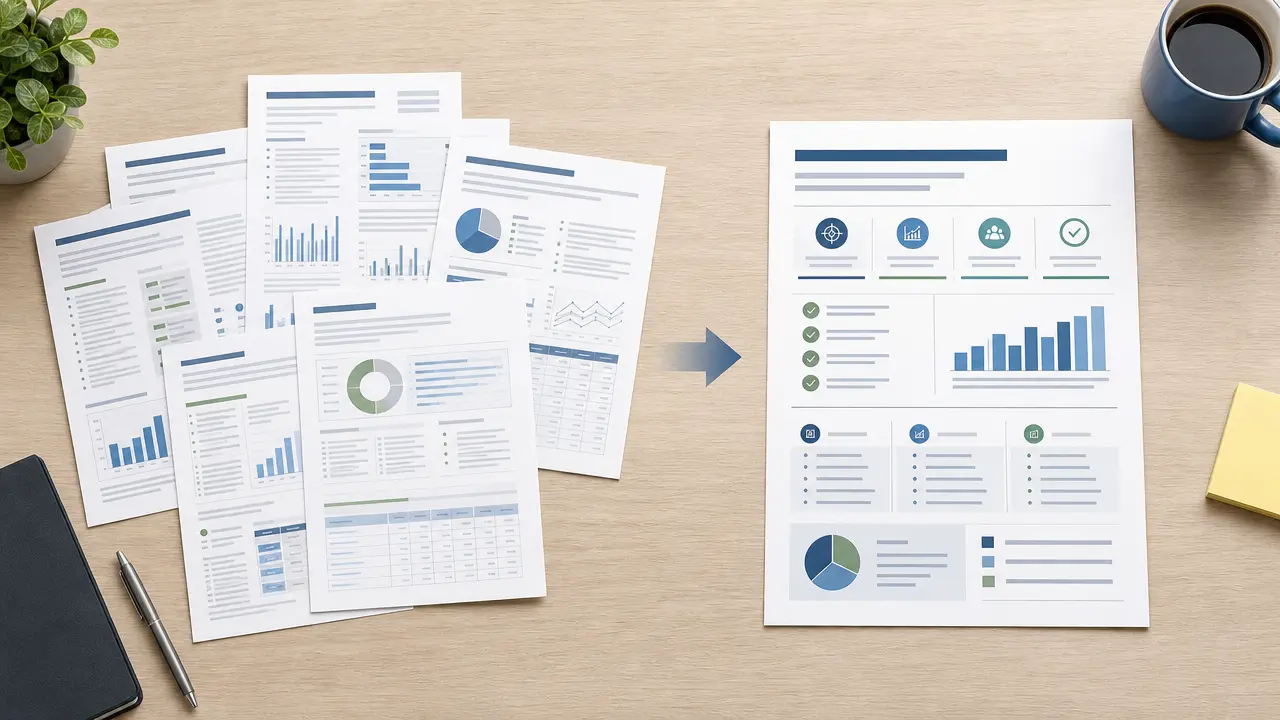
Prepare an authorized document summary request with audience, length, focus, and source-review controls.
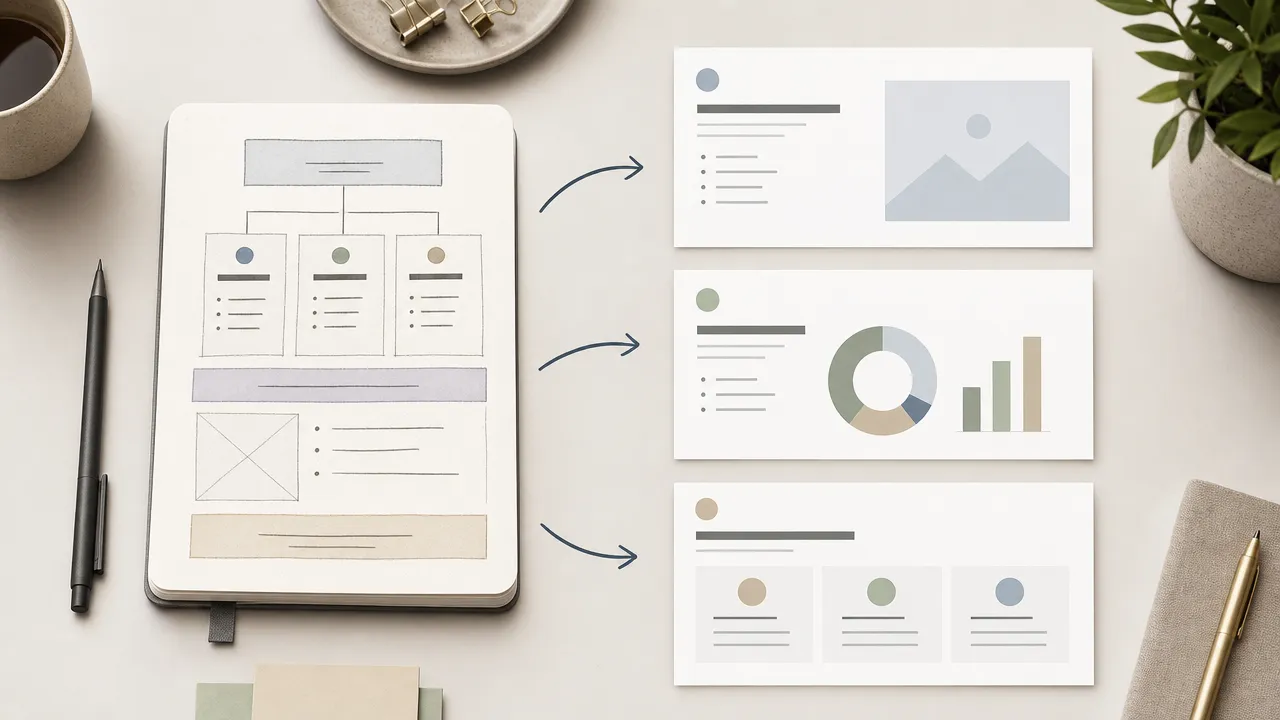
Use Nano Banana Slides to prepare an original presentation-planning request from an authorized topic, outline, audience, visual direction, and slide-structure controls.