Controls matched to the task
The form makes visual direction, detail level, intended audience, and output ratio explicit, so the request captures the intended result and delivery context instead of relying on an ambiguous one-line instruction.
Start with authorized source material with a clear main subject, intended audience, and original brief describing the requested outcome. Choose visual direction, detail level, intended audience, and output ratio, then review the result against the original context before using it.
Use only material you are authorized to handle. Review source details and intended use before submitting.
Expected output
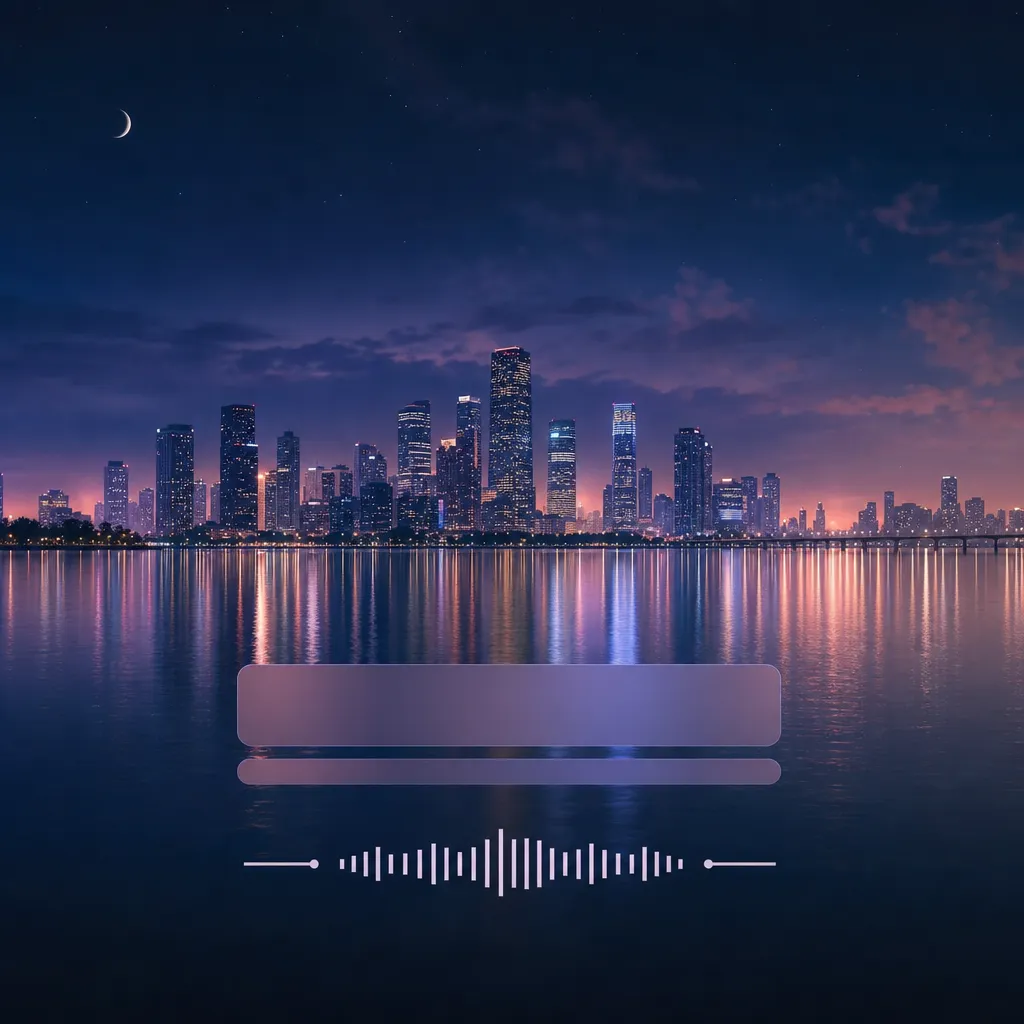
An original, rights-aware visual example for review before use.
Key features
The form makes visual direction, detail level, intended audience, and output ratio explicit, so the request captures the intended result and delivery context instead of relying on an ambiguous one-line instruction.
Begin with authorized source material with a clear main subject, intended audience, and original brief describing the requested outcome. Clear, authorized source material gives the request a stronger factual and visual foundation for later review.
Check source rights, visible text, consistency, context, and intended audience before relying on a future result. Structured inputs improve clarity but never replace contextual human verification.
Use this tool within a clear boundary: do not upload music, lyrics, voices, or cover art you are not authorized to use. Retain source material and permissions whenever they affect sharing or commercial use.
Step by step
Provide authorized source material with a clear main subject, intended audience, and original brief describing the requested outcome. Keep the request tied to the actual use case and to information, media, and people you are authorized to handle.
Choose visual direction, detail level, intended audience, and output ratio. Select settings that fit the intended audience and placement instead of assuming a more aggressive transformation is always better.
Inspect source rights, visible text, consistency, context, and intended audience. Compare important details with the source and obtain qualified review when the material affects rights, safety, records, or public claims.
FAQ
It helps you plan a lyric-video concept from authorized audio and lyrics with timing, caption, and delivery controls. The page turns the intended source, settings, and review points into a clear request before any output is relied on.
Use authorized source material with a clear main subject, intended audience, and original brief describing the requested outcome. A complete source and a defined goal reduce ambiguity and make later review more practical.
Choose visual direction, detail level, intended audience, and output ratio for the actual audience and destination. Start with the setting that serves the goal without introducing unnecessary changes.
Review source rights, visible text, consistency, context, and intended audience. Compare important claims, visible details, and context with the original source rather than treating a polished result as automatically correct.
do not upload music, lyrics, voices, or cover art you are not authorized to use. You remain responsible for permissions, accuracy, disclosures, and the final decision to use or share a result.
Video Tools
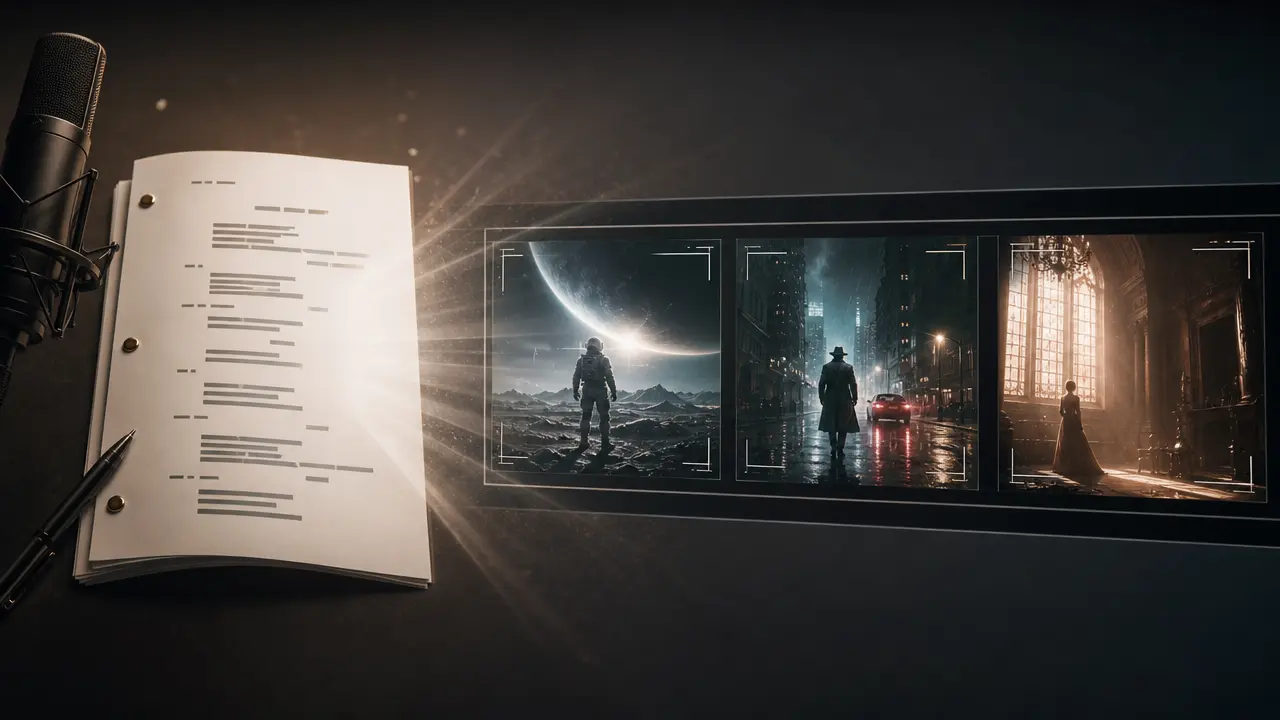
Structure a written script into a video concept with visual style, voice, captions and framing controls.

Use Audio to Video to prepare an audio-led video concept with deliberate visual pacing, style, and output framing.
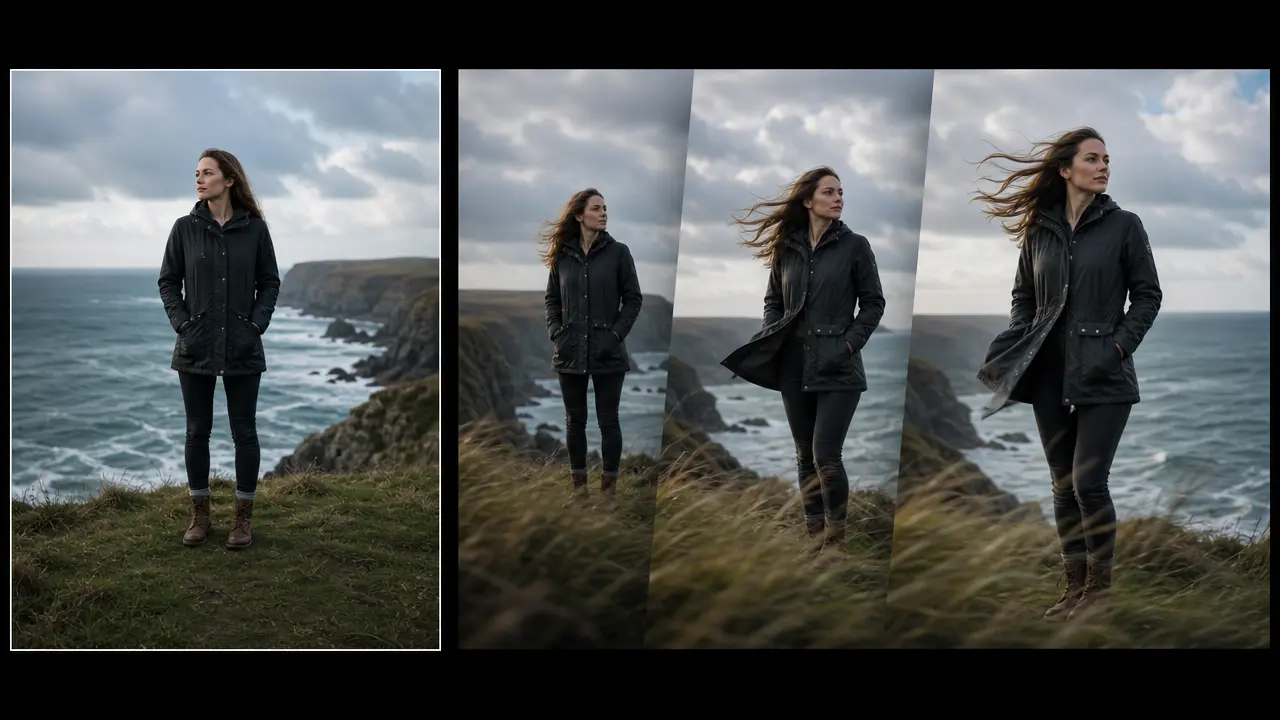
Plan a short motion treatment from a still image with direction, movement strength, duration, and output framing controls.
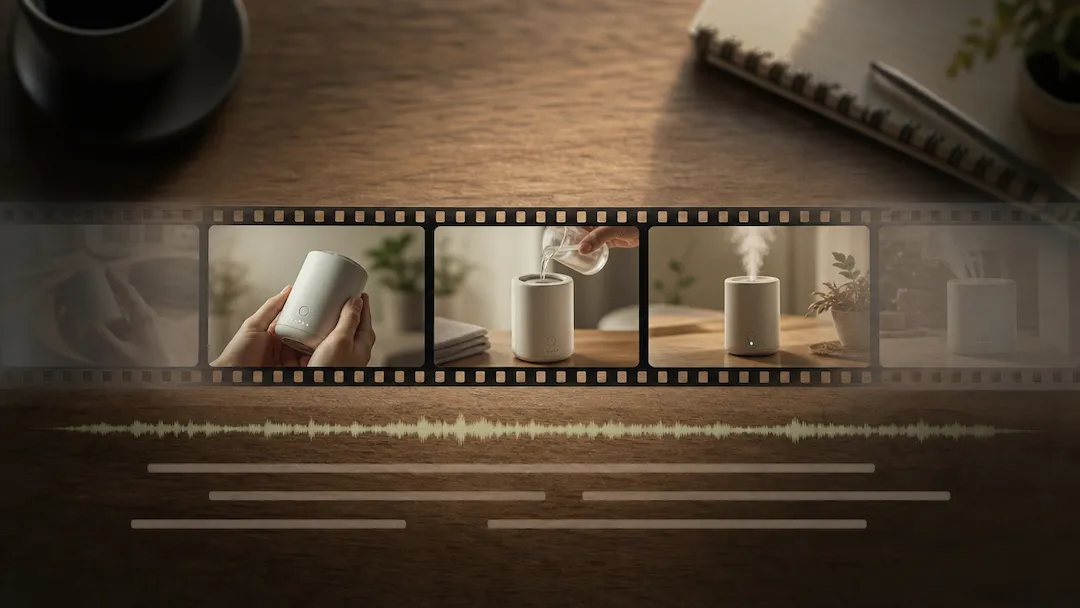
Use Video Editor to prepare an authorized video editing request with a defined edit goal, pacing, captions, delivery ratio, and review checklist.

Use Video Enhancer to prepare a reviewable video-quality improvement request for authorized footage.

Use Video Upscaler to prepare an authorized video upscaling request with a target resolution, artifact controls, frame handling, and intended delivery use.