NexMate

Chat Doc for Questions About Your Documents

Start with a document you are authorized to upload and a specific question, task, or section to review. Choose document type, question scope, answer format, citation preference, and response language, then review the result against the original context before using it.

Create an Chat Doc Request

Use only material you are authorized to handle. Review source details and intended use before submitting.

DOCX, TXT, or RTF, maximum 20 MB. Upload only documents you may review.

10-1,500 characters. Avoid pasting sensitive content that is not needed for the question.

.

Key features

Key Features of Chat Doc

01

Controls matched to the task

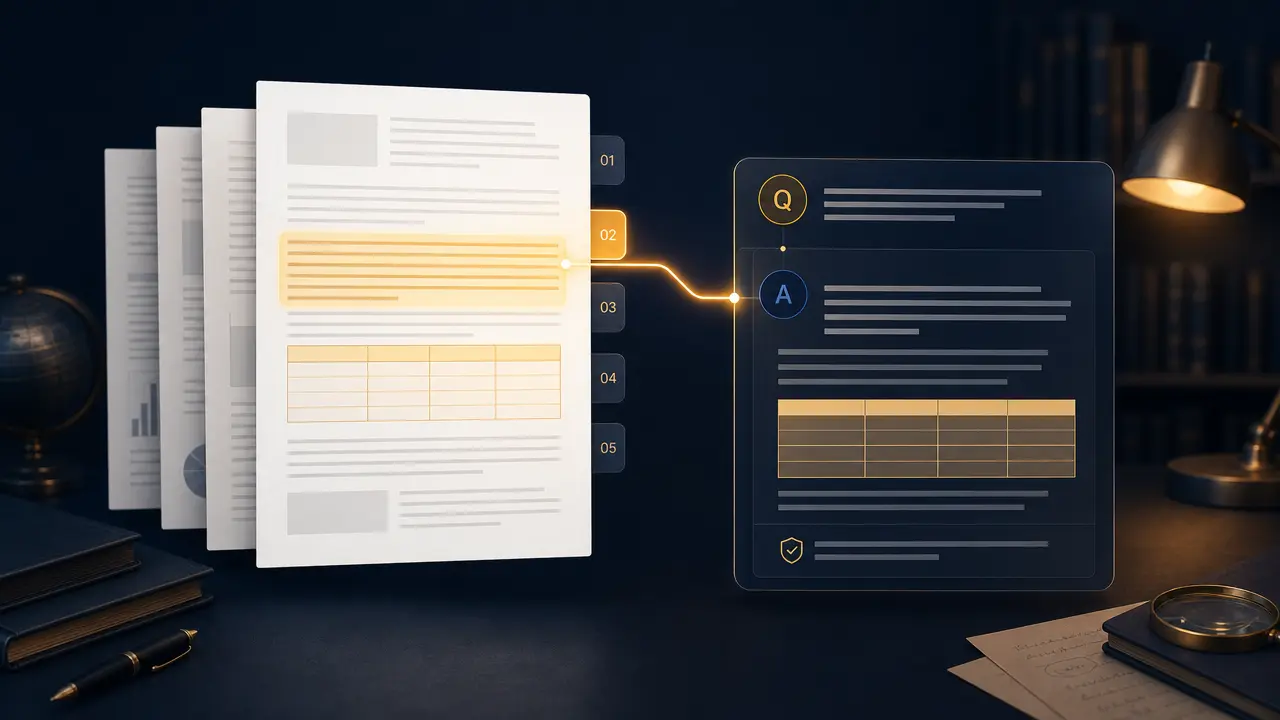
The form makes document type, question scope, answer format, citation preference, and response language explicit, so the request captures the intended result and delivery context instead of relying on an ambiguous one-line instruction.

02

Source-quality guidance

Begin with a document you are authorized to upload and a specific question, task, or section to review. Clear, authorized source material gives the request a stronger factual and visual foundation for later review.

03

Review points before use

Check source passages, page or section references, tables, omissions, confidential data, and conclusions that affect decisions before relying on a future result. Structured inputs improve clarity but never replace contextual human verification.

04

Responsible-use boundary

Use this tool within a clear boundary: do not upload confidential material without authorization or treat a response as a substitute for legal, financial, medical, or expert review. Retain source material and permissions whenever they affect sharing or commercial use.

Step by step

How to Use Chat Doc

  1. 1

    Prepare the source and outcome

    Provide a document you are authorized to upload and a specific question, task, or section to review. Keep the request tied to the actual use case and to information, media, and people you are authorized to handle.

  2. 2

    Set the controls for the destination

    Choose document type, question scope, answer format, citation preference, and response language. Select settings that fit the intended audience and placement instead of assuming a more aggressive transformation is always better.

  3. 3

    Review key details before use

    Inspect source passages, page or section references, tables, omissions, confidential data, and conclusions that affect decisions. Compare important details with the source and obtain qualified review when the material affects rights, safety, records, or public claims.

FAQ

FAQ of Chat Doc

What documents can I use with Chat Doc?+

The form is designed for authorized DOCX, TXT, RTF, and supported document files. Choose the file type and ask a concrete question so the review can stay anchored to the material you supplied.

How should I ask a useful document question?+

Name the section, topic, decision, clause, table, or comparison you need. Ask for a summary, extraction, explanation, or cited answer rather than a vague request to explain the whole file.

Why request citations or source references?+

References make it easier to compare an answer with the document, especially for tables, numbers, conditions, and material conclusions. Verify each cited passage before relying on it.

Can Chat Doc handle confidential documents?+

Only upload content you are authorized to handle and disclose. Remove unnecessary sensitive data, follow your organization’s privacy rules, and do not use a response as a replacement for qualified review.

Is Chat Doc the same as Chat PDF?+

They share a question-and-answer workflow, but Chat Doc is organized around general editable document formats and document-specific scope controls. Select the tool that matches the file you actually need to review.