NexMate

AI Audio to Text Converter for Searchable Transcripts

Give the recording context up front, choose the transcript structure your workflow needs, and keep source audio available to verify names, numbers, and unclear speech.

Create a AI Audio to Text Converter Request

Set the controls that match your real use case, then review source rights and critical details before submitting.

MP3, WAV, or M4A, maximum 100 MB. Upload audio you may transcribe.

MP4 or WebM, maximum 100 MB. Optional when an audio recording is uploaded.

.

Key features

Key Features of AI Audio to Text Converter

01

Audio or video transcription input

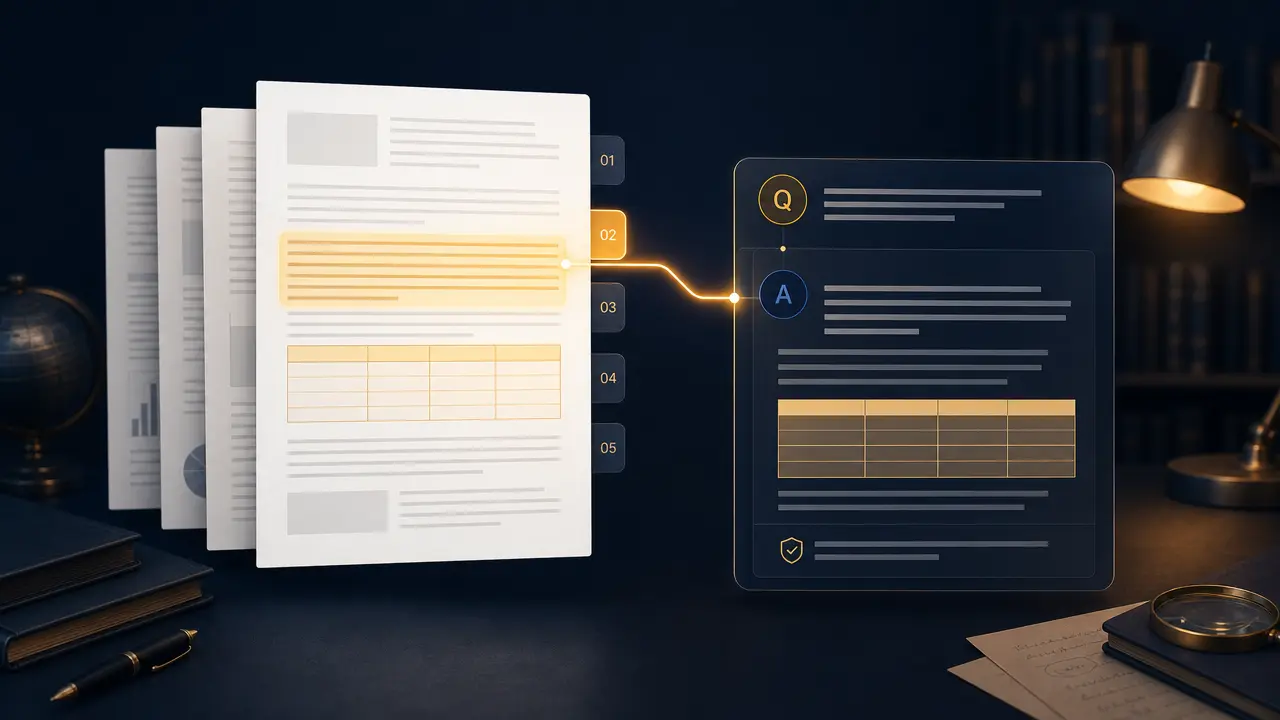
Upload an authorized MP3, WAV, M4A, MP4, or WebM recording and identify its spoken language. Accepting common recording formats reflects how interviews, meetings, lectures, and social-video audio are actually captured.

02

Speaker and timestamp structure

Request one, two, or multiple speaker handling together with paragraph or sentence timestamps. These choices make a transcript more useful for review, editing, quoting, meeting follow-up, or locating a specific point in a source recording.

03

Verbatim or cleaned delivery

Choose a close-to-spoken transcript or a lightly cleaned reading version, then select plain text, subtitles, or a document-friendly export. The right level depends on whether spoken detail or readability is the priority.

04

Source-first verification

Names, dates, figures, speaker labels, and uncertain words should be checked against the recording before a transcript becomes a record. A structured request helps review; it does not make imperfect audio automatically reliable.

Step by step

How to Use AI Audio to Text Converter

  1. 1

    Upload an authorized recording

    Choose an audio or video file you may transcribe and state the spoken language and recording context.

  2. 2

    Set transcript structure

    Choose speaker handling, timestamps, cleanup level, and an export format that fits editing, subtitles, notes, or document review.

  3. 3

    Verify against the source

    Listen back to names, numbers, dates, commitments, and unclear passages before using the transcript as a record or publishing captions.

FAQ

FAQ of AI Audio to Text Converter

Which files can AI Audio to Text Converter accept?+

The form is designed around common MP3, WAV, M4A, MP4, and WebM recordings. Use an authorized source with the clearest available audio, since a transcript cannot recover speech that was not captured clearly.

What are speaker labels and timestamps for?+

Speaker labels help separate who said what, and timestamps help locate a passage in the recording. Both are particularly useful for interviews, meetings, podcasts, subtitles, and any transcript that needs later review.

Should I choose verbatim or cleaned transcript text?+

Choose verbatim when spoken wording, pauses, or fillers matter. Choose light cleanup when a readable record is more useful. In either case, retain the original audio for disputes or high-stakes verification.

Can I transcribe multilingual audio?+

You can identify mixed languages in the request. Accuracy will still depend on audio quality, accents, overlapping speech, and language switching, so review names and critical passages against the recording.

Can I use the transcript as an official record?+

Not without checking it against the source recording. Review speaker attribution, numbers, dates, and material statements, and follow the privacy, consent, retention, and recordkeeping rules that apply to your context.