Portrait-focused input guidance
The form asks for a clear, authorized portrait with a visible face and practical lighting, helping the intended result start from a useful source rather than an unclear group shot or heavily obscured image.
Upload a portrait you are allowed to edit, choose a professional setting and framing, and prepare a headshot request that preserves a truthful, recognizable presentation.
Use only an authorized portrait. Results are visual concepts and must not be used as official identification or misleading proof of identity.
Expected output
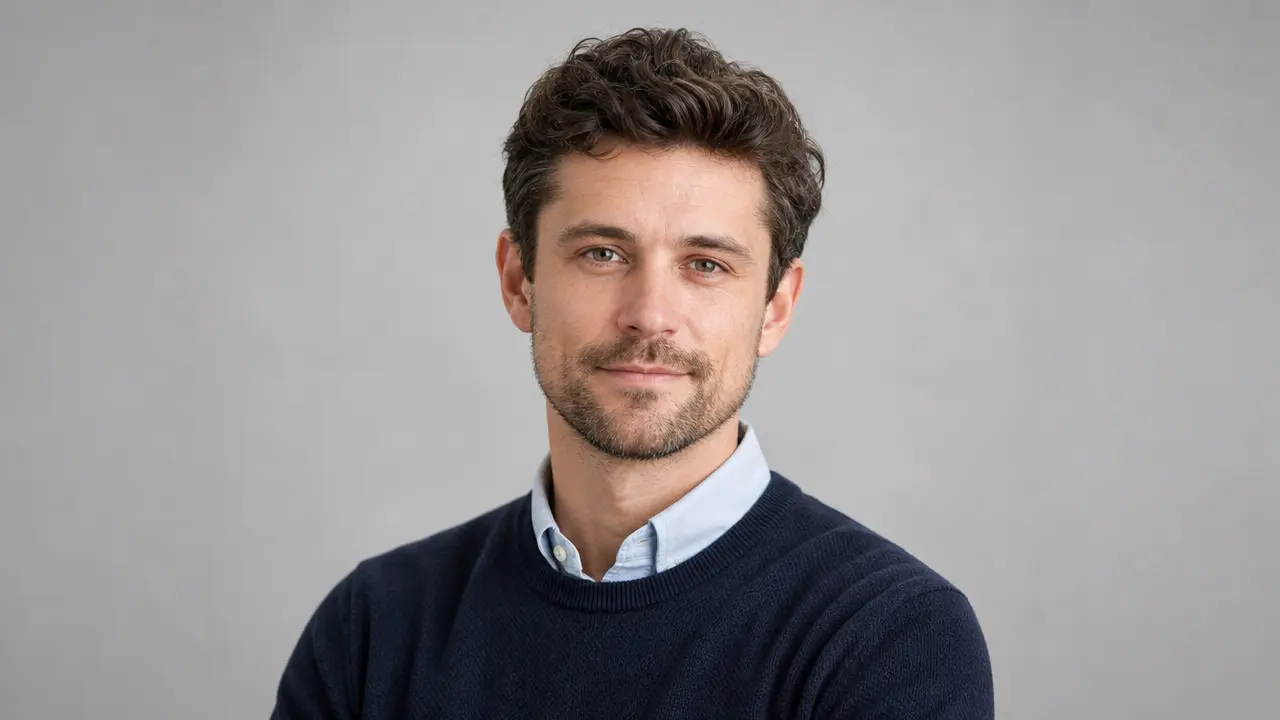
A clean chest-up professional portrait in a neutral studio setting, showing the requested honest lighting, simple wardrobe, and profile-ready framing.
Key features
The form asks for a clear, authorized portrait with a visible face and practical lighting, helping the intended result start from a useful source rather than an unclear group shot or heavily obscured image.
Choose a neutral studio, office, or soft outdoor setting alongside a wardrobe direction, so the requested visual can fit a professional profile context without claiming a real workplace or credential.
Select a close head-and-shoulders, chest-up, or editorial crop and an output ratio, making the request easier to review for common profile, portfolio, speaker, and internal-directory uses.
The page encourages review of facial features, age cues, accessories, text, and background details before use, especially where a headshot could be interpreted as an official identity or employment record.
Step by step
Upload a recent image you are allowed to edit, with the face visible and not covered by strong filters. Do not use another person's portrait without permission or present a generated result as government identification.
Choose a setting, wardrobe direction, crop, and background color that fit the intended profile context. Describe visual preferences only and avoid claims about employers, degrees, roles, or affiliations.
Review facial likeness, hands, eyewear, clothing details, and background text. Use a verified original image wherever identity verification, legal identification, or official personnel documentation is required.
FAQ
It prepares a professional portrait concept from an authorized source photo and selected visual settings. It is not a substitute for official identification photography or identity verification.
Use a clear, recent photo with the face visible, practical lighting, and minimal obstruction. A single-person portrait usually gives a more focused request than a group or distant photo.
Review it first and follow the platform or organization's image rules. Do not use a generated image to misrepresent credentials, employment, identity, or an official affiliation.
No visual transformation can guarantee every detail stays unchanged. Carefully inspect facial features, age cues, accessories, clothing, and background before displaying the result publicly.
A neutral studio background works for most profiles because it keeps attention on the person. Choose an office or soft outdoor scene only when it supports the profile context without implying a specific employer, role, or location.
Image Effects
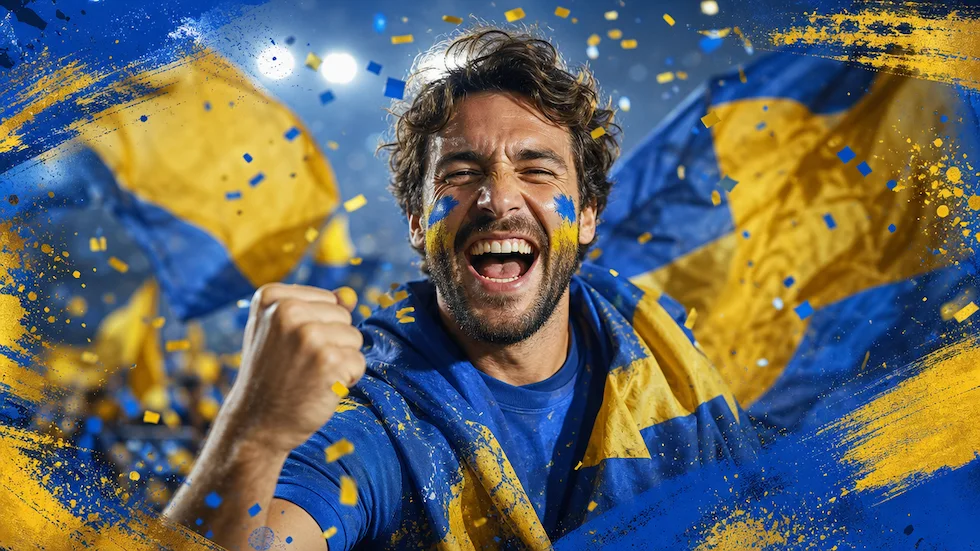
Use World Cup AI Effects & Templates to prepare an original football-fan photo effect with generic celebration props and no claim of official competition affiliation.
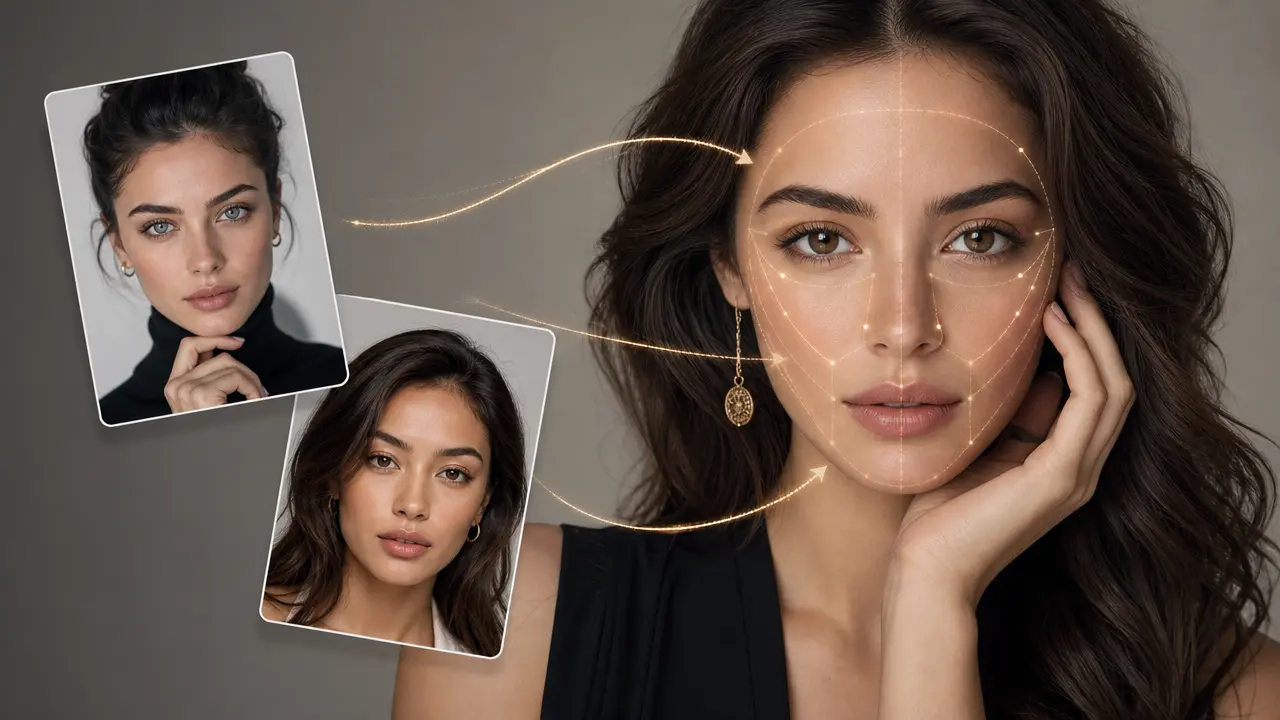
Combine a target photo and an authorized face reference with adjustable blending.
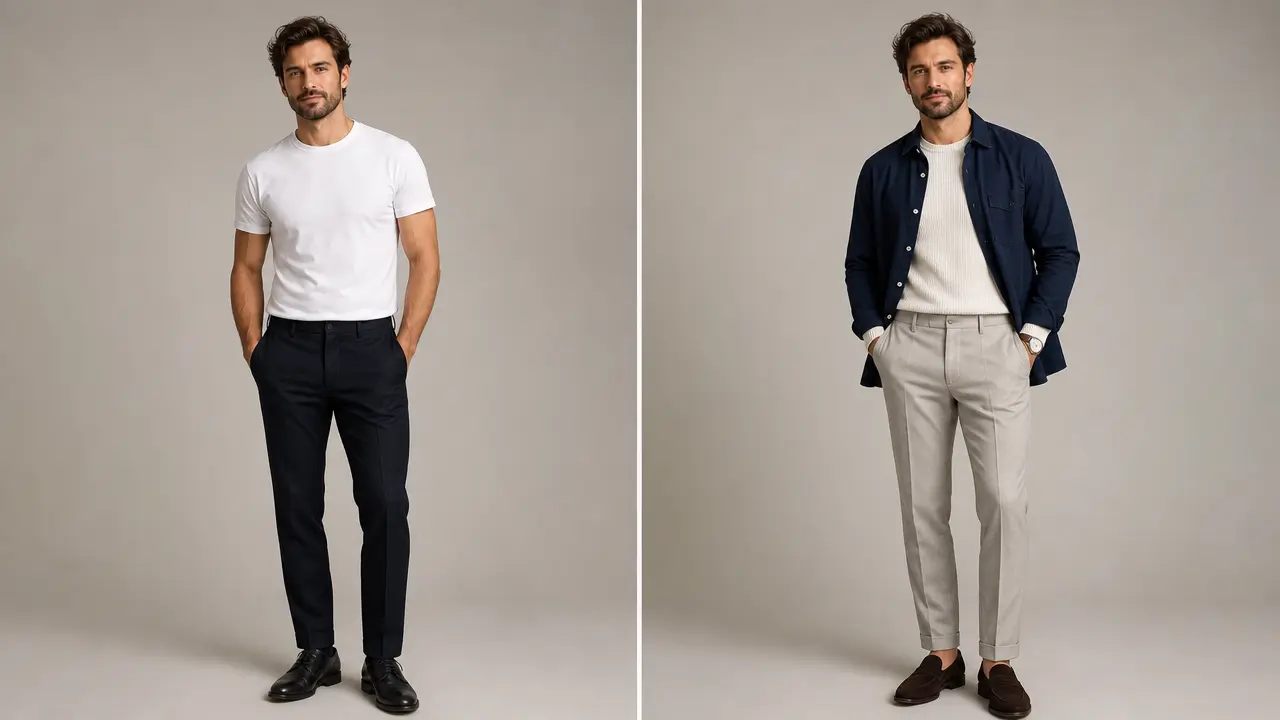
Explore an outfit direction for an authorized portrait with garment style, color, occasion, and composition-preservation controls.
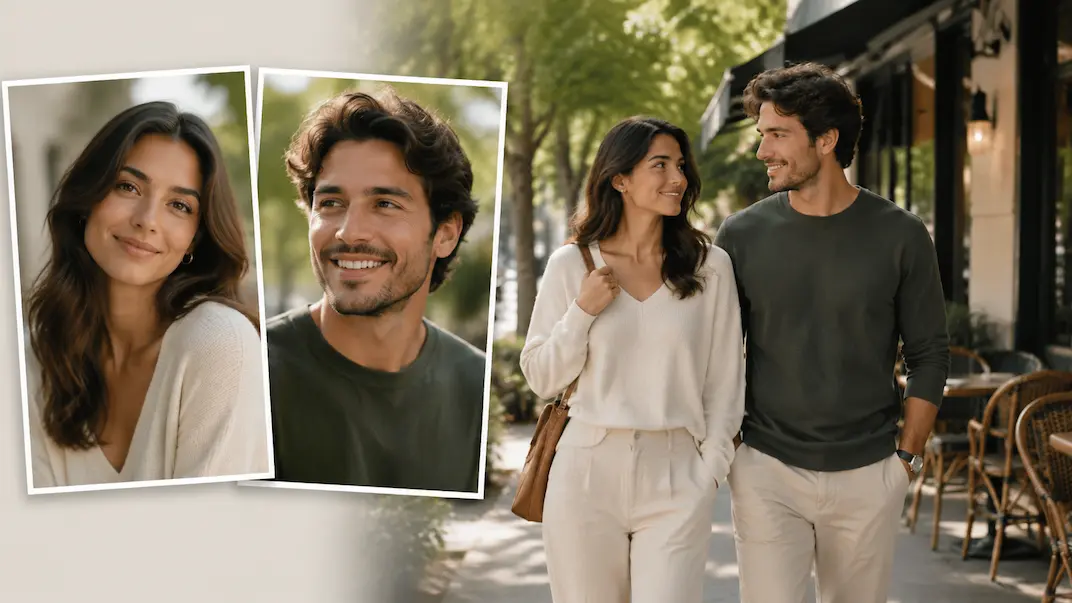
Use AI Couple Photo Maker to plan a respectful couple-photo visual concept from two authorized adult portraits.
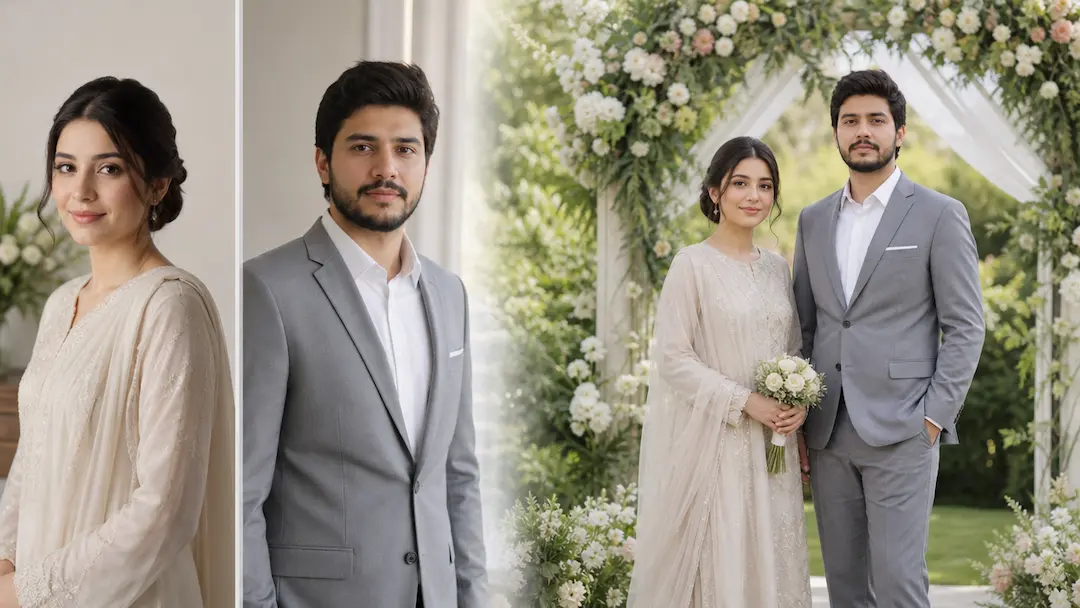
Use AI Wedding Photo Generator to prepare a respectful wedding-photo concept from authorized adult portraits with scene and styling controls.
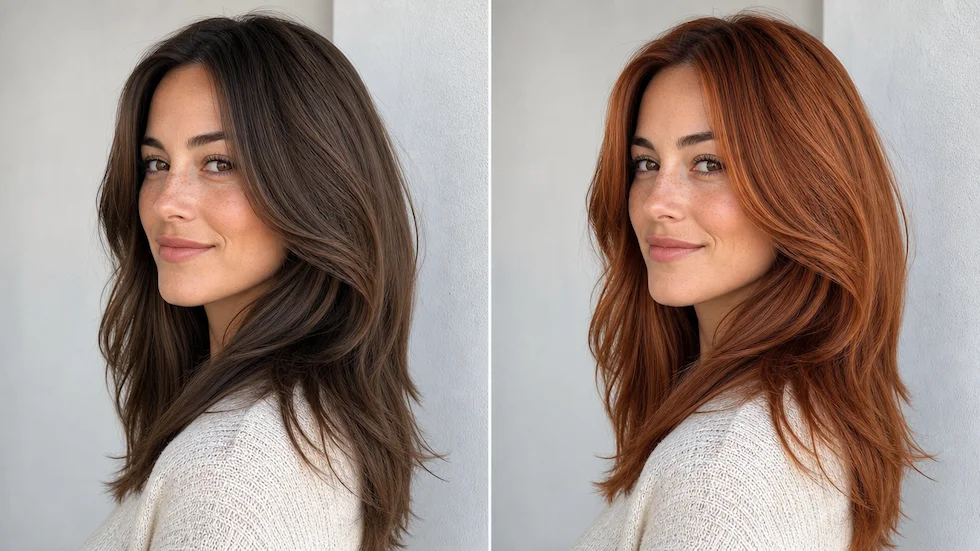
Preview a chosen or custom hair color on an authorized portrait with roots, highlights, skin tone, and lighting in view.