NexMate

AI Halloween Filter: Create an Original Seasonal Photo Effect

Start with an authorized photo with a clear subject and an intended audience suitable for a seasonal visual effect. Choose seasonal mood, decoration intensity, lighting color, background treatment, and output framing, then review the result against the original context before using it.

Create an AI Halloween Filter Request

Use only material you are authorized to handle. Review source details and intended use before submitting.

JPG, PNG, or WebP, maximum 10 MB. Use only an image you may edit.

.

Key features

Key Features of AI Halloween Filter

01

Controls matched to the task

The form makes seasonal mood, decoration intensity, lighting color, background treatment, and output framing explicit, so the request captures the intended result and delivery context instead of relying on an ambiguous one-line instruction.

02

Source-quality guidance

Begin with an authorized photo with a clear subject and an intended audience suitable for a seasonal visual effect. Clear, authorized source material gives the request a stronger factual and visual foundation for later review.

03

Review points before use

Check portrait rights, audience suitability, costume details, visible text, cultural context, and whether the effect could create an unwanted frightening impression before relying on a future result. Structured inputs improve clarity but never replace contextual human verification.

04

Responsible-use boundary

Use this tool within a clear boundary: do not use protected characters, violent or graphic horror, misleading offers, or a person's likeness without permission. Retain source material and permissions whenever they affect sharing or commercial use.

Step by step

How to Use AI Halloween Filter

  1. 1

    Prepare the source and outcome

    Provide an authorized photo with a clear subject and an intended audience suitable for a seasonal visual effect. Keep the request tied to the actual use case and to information, media, and people you are authorized to handle.

  2. 2

    Set the controls for the destination

    Choose seasonal mood, decoration intensity, lighting color, background treatment, and output framing. Select settings that fit the intended audience and placement instead of assuming a more aggressive transformation is always better.

  3. 3

    Review key details before use

    Inspect portrait rights, audience suitability, costume details, visible text, cultural context, and whether the effect could create an unwanted frightening impression. Compare important details with the source and obtain qualified review when the material affects rights, safety, records, or public claims.

FAQ

FAQ of AI Halloween Filter

What can AI Halloween Filter help me create?+

It prepares an original seasonal photo effect from an authorized image, using controlled lighting, decorations, and framing rather than a generic unreviewed transformation.

Which photo works best with AI Halloween Filter?+

Use a clear authorized photo with a visible main subject and an audience-appropriate context. Avoid protected characters, sensitive documents, and scenes where a spooky treatment could mislead viewers.

Can I choose a family-friendly Halloween look?+

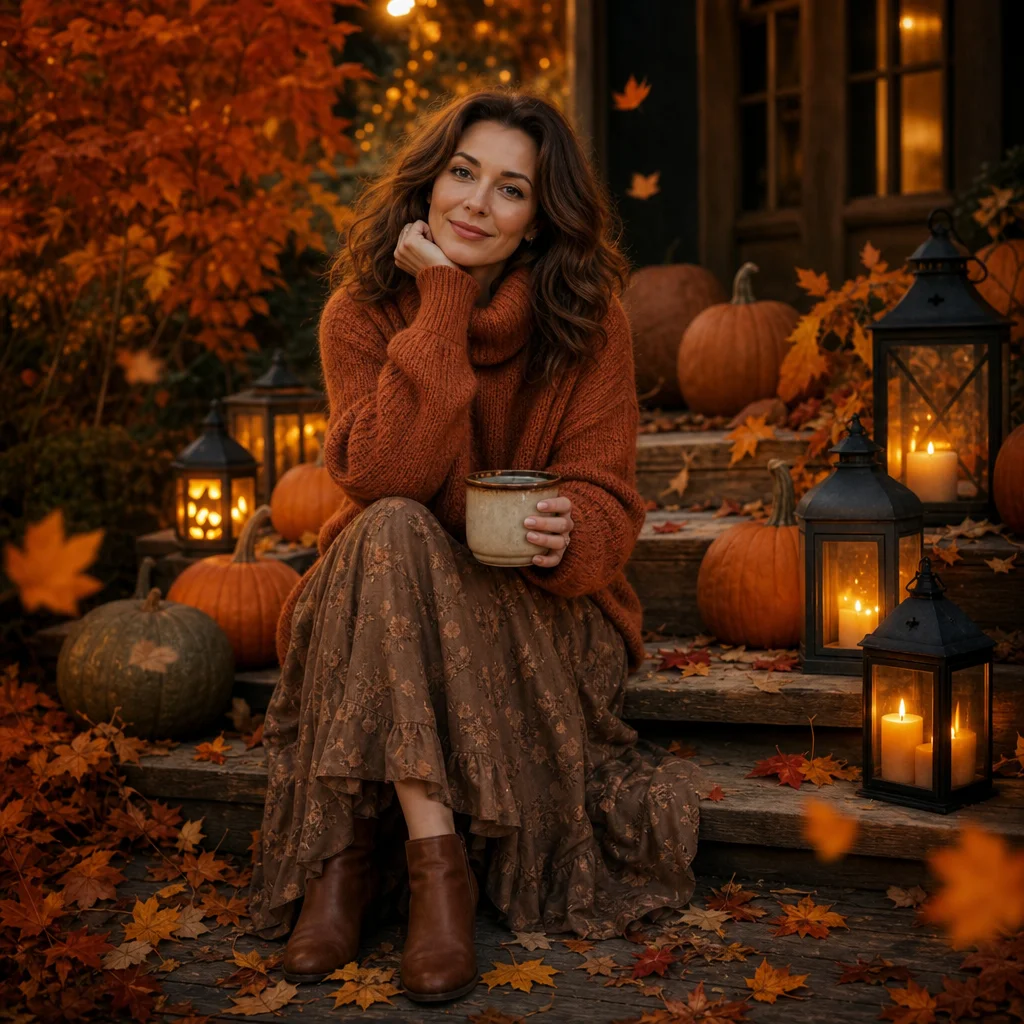
Yes. Select a warm harvest direction with pumpkins, lanterns, and gentle seasonal color rather than frightening imagery. Review the result for the ages and cultural context of the intended audience.

Can I use a famous Halloween character or franchise?+

No. Request original seasonal imagery and avoid protected characters, studio worlds, logos, or costumes that imply an official connection.

Can I post a Halloween-filter image publicly?+

Only when you have rights to the source image and the people shown. Review visible text, personal details, and whether the generated effect should be disclosed to avoid confusion.