NexMate

AI Video Extender: Plan Natural Continuations for Authorized Clips

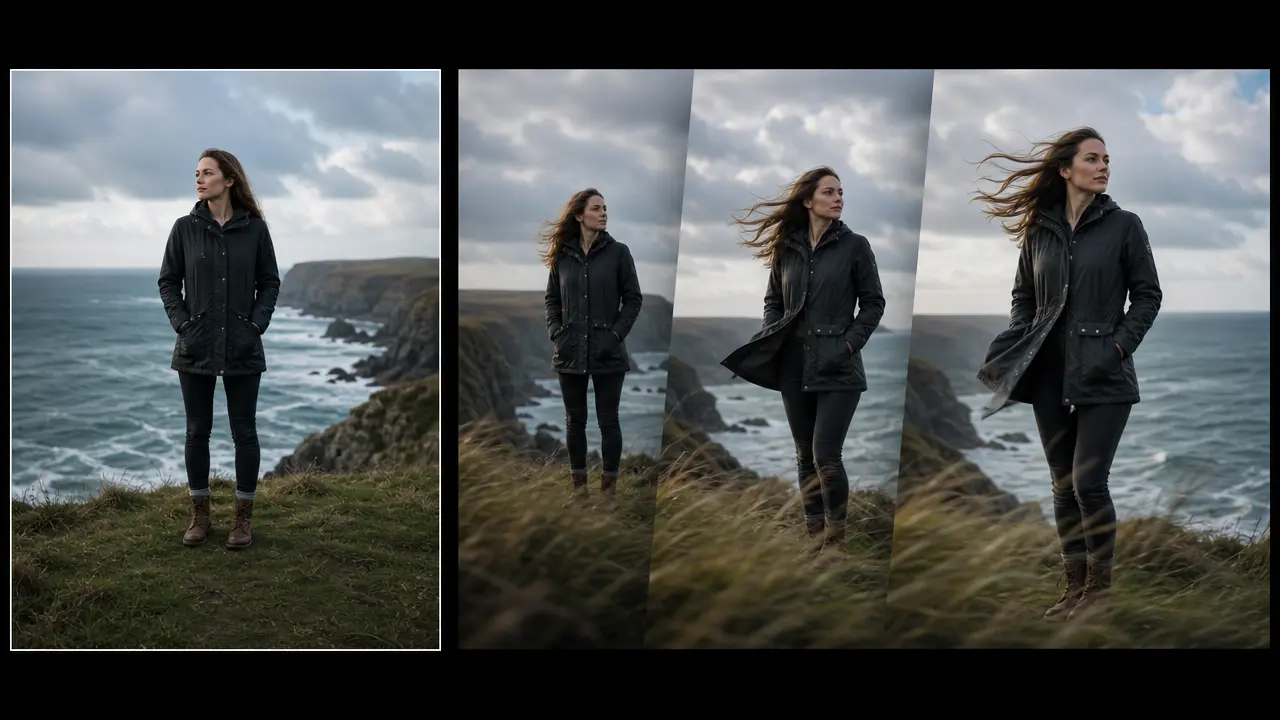
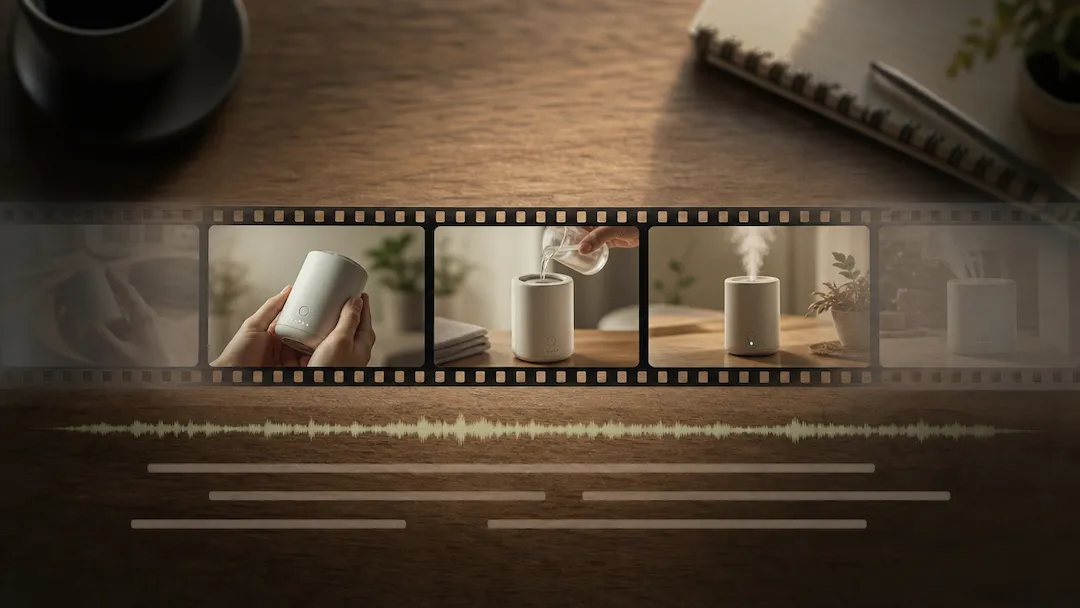
Start with an authorized short clip with a stable final frame, visible subject, and enough scene context to continue. Choose extension length, continuation direction, camera continuity, and output framing, then review the result against the original context before using it.

Create an AI Video Extender Request

Use only material you are authorized to handle. Review source details and intended use before submitting.

MP4 or WebM, maximum 100 MB. Keep the last frame stable and do not upload evidentiary or surveillance footage.

.

Key features

Key Features of AI Video Extender

01

Controls matched to the task

The form makes extension length, continuation direction, camera continuity, and output framing explicit, so the request captures the intended result and delivery context instead of relying on an ambiguous one-line instruction.

02

Source-quality guidance

Begin with an authorized short clip with a stable final frame, visible subject, and enough scene context to continue. Clear, authorized source material gives the request a stronger factual and visual foundation for later review.

03

Review points before use

Check the final-frame transition, subject consistency, motion plausibility, visible text, and whether the continuation changes the original context before relying on a future result. Structured inputs improve clarity but never replace contextual human verification.

04

Responsible-use boundary

Use this tool within a clear boundary: do not extend news, evidence, surveillance, or other footage in a way that fabricates events or records. Retain source material and permissions whenever they affect sharing or commercial use.

Step by step

How to Use AI Video Extender

  1. 1

    Prepare the source and outcome

    Provide an authorized short clip with a stable final frame, visible subject, and enough scene context to continue. Keep the request tied to the actual use case and to information, media, and people you are authorized to handle.

  2. 2

    Set the controls for the destination

    Choose extension length, continuation direction, camera continuity, and output framing. Select settings that fit the intended audience and placement instead of assuming a more aggressive transformation is always better.

  3. 3

    Review key details before use

    Inspect the final-frame transition, subject consistency, motion plausibility, visible text, and whether the continuation changes the original context. Compare important details with the source and obtain qualified review when the material affects rights, safety, records, or public claims.

FAQ

FAQ of AI Video Extender

What kind of clip is best for AI Video Extender?+

A short, authorized clip with a stable final frame, consistent lighting, and a visible subject is easier to continue. Leave enough context near the end for motion, camera direction, and background continuity to be reviewed.

How much video can I extend?+

This request provides short continuation choices. Select the smallest extension that supports your edit, because longer invented continuations create more opportunities for visual drift and contextual changes.

Will AI Video Extender preserve people and objects exactly?+

Not necessarily. Any future output needs review for facial identity, object shape, text, motion, and scene continuity. Do not assume a continuation accurately reproduces original details.

Can I extend news, security, or evidence footage?+

No. Do not use generated continuation to alter or fabricate records of real events. Preserve original footage and use appropriate editorial or evidentiary workflows instead.

How should I use a continued video publicly?+

Review it as AI-generated media and disclose the continuation where it could be mistaken for original footage. Check that it does not change the meaning or factual context of the source clip.